
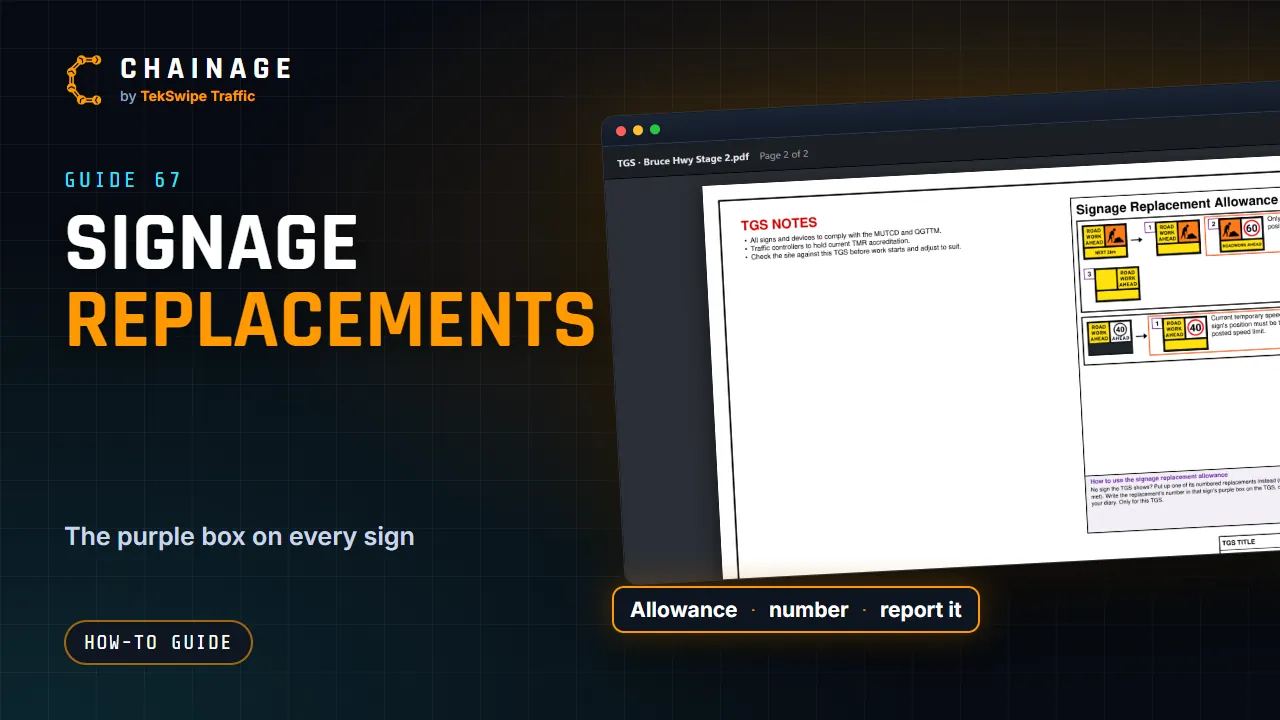
A TGS's signage replacement allowance lists signs a crew can put up instead of the ones the TGS shows, when they don't have them on the truck. It's on the TGS itself, usually near the end.
Reading the allowance
Each box starts with a sign from the TGS, then an arrow, then its replacements. Each replacement has a number in a small box beside it.
- A replacement on its own can be used instead of that sign with no conditions.
- A replacement in an orange box can only be used when the conditions written beside it are met (for example, when the temporary speed limit at that spot is the same as the posted limit).
The allowance is for that TGS only. Don't use it to replace signs on another TGS.
Mark the sign's purple box
On the TGS's map pages every sign has an empty white box with a purple edge touching it. When you put up a replacement:
- Find the sign you're replacing in the allowance, and pick a replacement you have (check its conditions if it's in an orange box).
- Put that replacement up where the TGS shows the sign.
- Write the replacement's number in that sign's purple box on the site copy of the TGS.
- Record it in your worksite diary (or a drive-by dashcam video of the site).
A TMI or TMD reading the TGS then knows exactly which sign is out there.
Report it in Chainage while you set up
If you set up the site with Chainage (see Set up and pack up a site), you can record the replacement there too:
- When Chainage shows the sign you're replacing as next, tap More options, then Put up a replacement sign.
- Pick the replacement's number from the list. If it has conditions, Chainage asks you to confirm they're met.
- Set it up as normal. The sign's card shows Put up as replacement No. 2 (say), with who did it and when, and it's in the set-up log.
Any sign's card also has Replacement…, to record or undo a replacement later. The TGS draft shows the reported number in that sign's purple box.
For TGS designers
In the TGS draft editor, click a sign on the map, then + Add a replacement… to design a replacement sign, and Conditions… to say when it can be used. Use the standard ones (or Add the standard allowances on the allowance itself) fills in the usual replacements for the set-up's speed. The allowance fits its boxes to its size, and has a short how-to and a QR code to this guide at the bottom.