
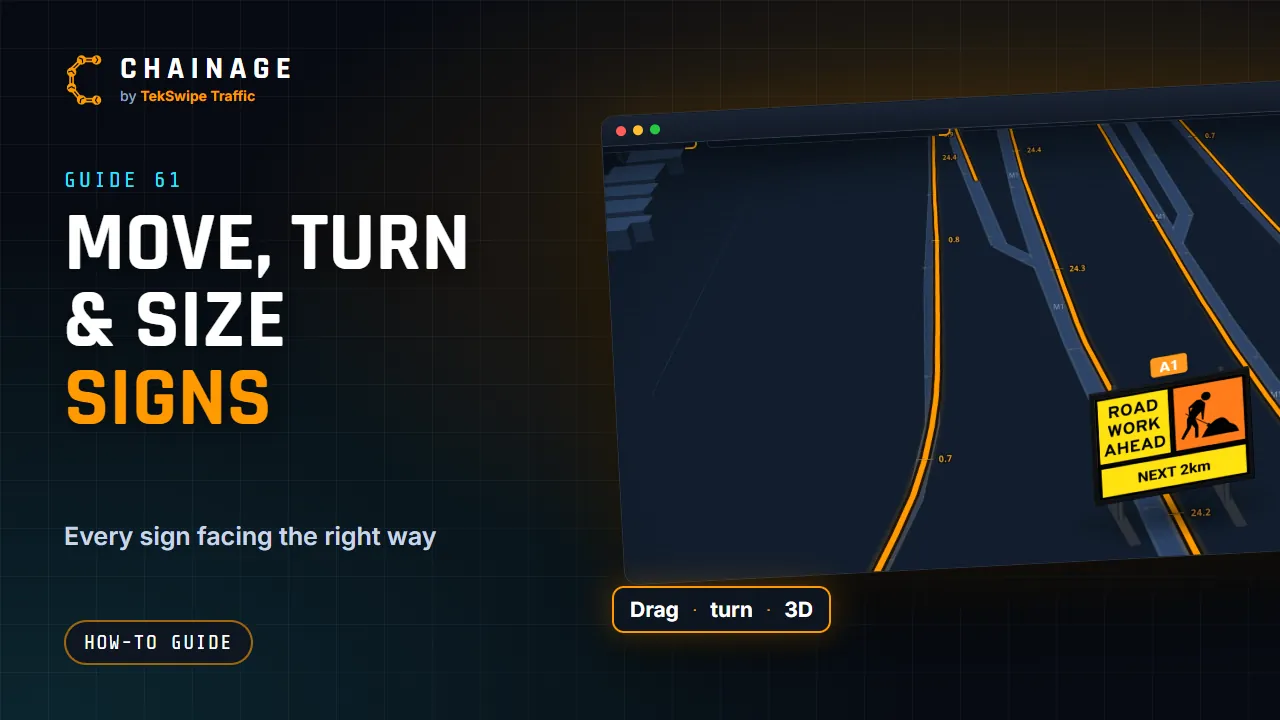
Once a sign or object is on the map, you can set exactly where and how it stands.
Move it
- Click the sign to pick it. Its card opens.
- Press on the sign again and drag it to where it goes. Let go, and it's saved there.
While you drag, guides show the distance along the road to the nearest signs on each side. Esc puts it back. A sign that isn't picked can't be dragged by accident, and holding Ctrl while you drag always turns and tilts the map instead. To move several at once, see Pick several items, copy and undo.
The same works for points, photos and drawings in a project: pick it, then drag it.
Turn it to face the traffic
On the sign's card, under On the map:
- Stand rotation: the slider and the turn buttons turn the stand. Zoomed in on a computer, you can also drag the round handle on the stand. On a phone, tap Zoom to sign first.
- Turn 180° flips it round, to face the other way.
- The sign side arrows choose where the picture sits beside the stand (above it, to its right, and so on), so it stays clear of the road. It stays on that side as the map turns.
How it's mounted
Mounted on is how the sign is put up: a Stand (200 mm off the ground), or Posts 1.5 m or Posts 2.2 m (permanent, with the sign's bottom that high). It changes the symbol on the map and the height in 3D and Street View.
How big it's drawn
- Size of this sign on its card changes just this one (10% to 300%). Reset puts it back to 100%.
- To size every sign on a layer, open More, then Layers, and use that layer's Sign size slider. 100% suits most maps; turn it up when you're zoomed out.
Size only changes how the sign is drawn on the map, not the sign itself.
In 3D and Street View
Tap 3D and tilt the map, and signs and objects stand up at their real height. In Street View, they stand in the scene, facing the way they're turned, nearest in front. Pick one there and drag it along the ground to move it.
Street View's imagery doesn't always line up exactly with the map. If a sign looks off in Street View, tap Set apart on its card: then it can be placed in Street View without moving it on the map, and the other way round. Set view saves the Street View angle a sign's link opens at.