Home / Knowledge base / Signs and traffic control
Signs and traffic control
Print a manifest
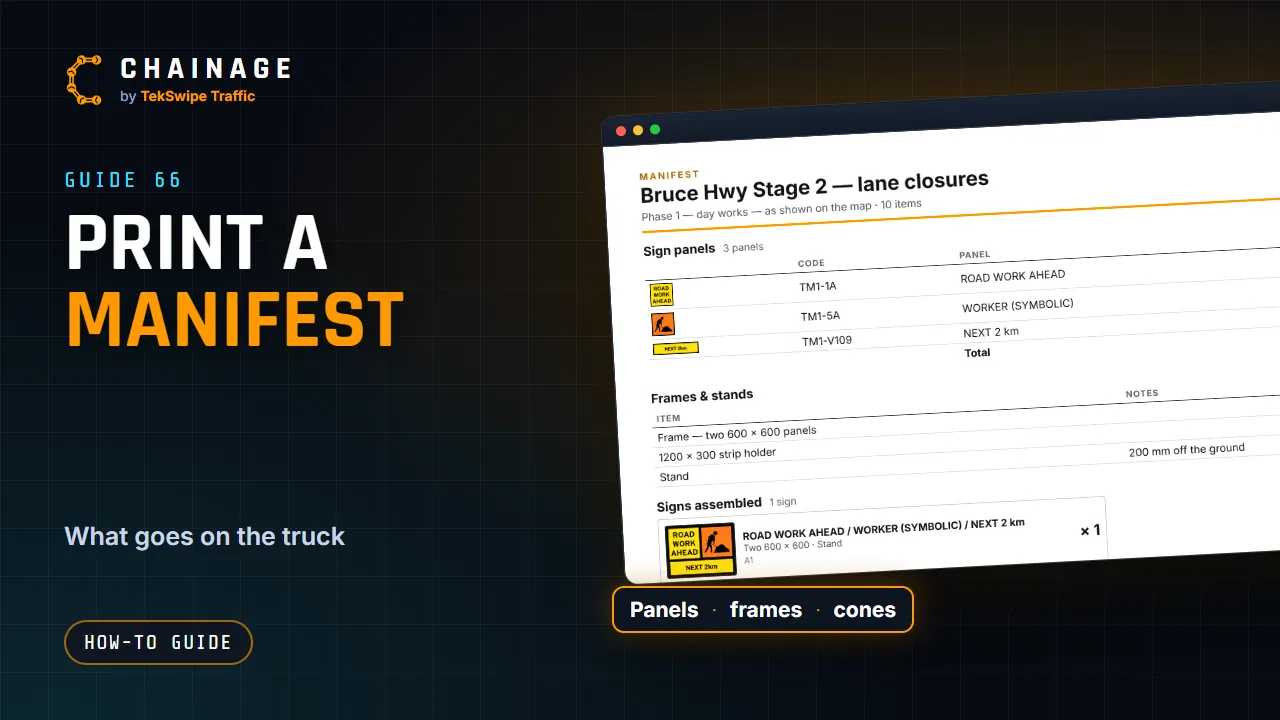
List everything a job needs (sign panels, frames and stands, signs as assembled, objects, cones and devices) and print it, save it as a PDF or download a CSV.
Video 0:48 · 1 min read · Updated 23 October 2026
Watch on its own page, with the transcript
On this page Open it Choose what's in it Print or download
A manifest lists everything a job needs on the truck, from the project's items.
Open it
With a project open, tap More , then Items , and tap Manifest .
Choose what's in it
What it covers : Shown now (the site and phase you're in, as on the map), This site (every phase), or Whole project .Include : tick the parts you want:
Sign panels : each insert, totalled, with its picture, code and size;Frames & stands : frames by layout, strip holders, and what they stand on;Signs assembled : each sign as it's put together, with how many;Objects : PTSS lights, VMS boards and hazard markers;Cones & devices : cones, bollards, barriers, fencing and delineators, with runs and lengths;Other items : points, photos, drawings and notes;Item list : every item, with where it goes.
Items : untick any item to leave it out, or use All and None .
A line under the list sums it up, for example 2 signs · 6 panels · 1 object · 22 cones .
Print or download
Print / save as PDF opens your browser's print dialog with a clean, printable manifest. To keep a PDF, choose Save as PDF as the printer.Download CSV saves a spreadsheet file, with a row for each panel, frame and item.
What you tick is remembered on this device for next time.
Previous Signage replacement allowancesNext Make a TGS from a range
More in Signs and traffic control
Add a sign▶ Put a real sign on the map: build it from the TMR sign inserts in the designer, make it back-to-back, and save it to a project. PTSS lights, VMS boards, hazard markers, utes and traffic controllers▶ Place a portable traffic signal, a VMS board with its message, or a T5-7 hazard marker on the map, and see them stand up in 3D and Street View. Move, turn and size signs▶ Pick a sign and drag it into place, turn it to face the traffic, choose which side its picture shows, how it's mounted and how big it's drawn, and see it in 3D and Street View. Draw measurements, areas, lines and notes▶ Use the pen to measure along the road, mark out areas, draw lines and pin notes to a project's map, style them, and edit their points.