
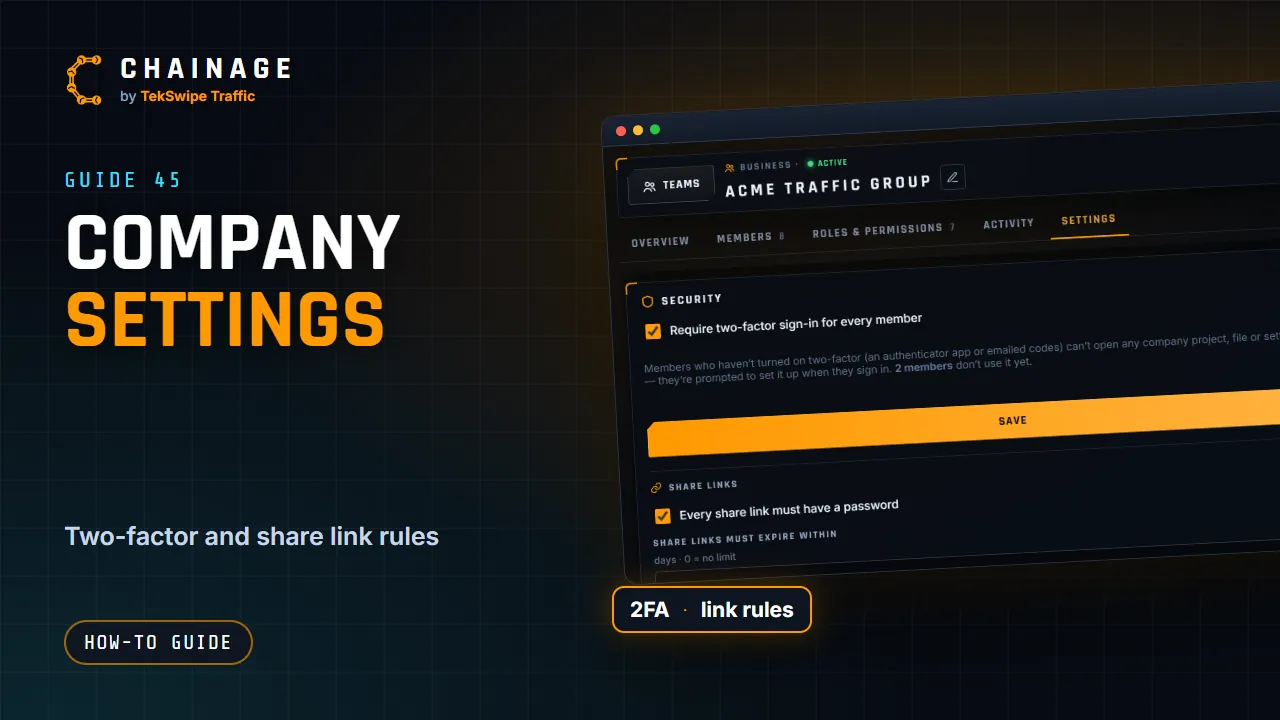
The company's Settings tab holds its name, security rules, data export and ownership. Most of it needs the Edit company name and security settings permission (the Owner and Admin roles by default).
Name and organisation type
Rename the company with the pencil (✎) next to its name at the top, or under Company name in Settings. Members see the new name straight away, and future invoices use it too.
Organisation type is A company or A government organisation. It's the same Business plan and price either way. Tap Save.
Security rules
- Require two-factor sign-in for every member. Turn on two-factor for your own account first, so you don't lock yourself out. Members without it can't open any company project, file or setting until they set it up; they're asked to when they sign in, and anyone signed in without it loses access straight away. The Members tab shows who has it (2FA or No 2FA).
- Every share link must have a password.
- Share links must expire within a number of days (0 means no limit). Tap Save policy.
You can also stop particular roles making links without a password: untick Create share links without a password for that role. See Roles and permissions and Share a project with a link.
Export all company data
Download everything gives you one zip of every company project you can see: details, phases and layers, every point and range (GeoJSON and CSV), and all photos and files. Without photos & files is smaller and quicker. Large companies can take a while. The owner and roles with the export permission can do this.
Transfer ownership
Only the owner can do this. Pick a member, enter your password and tap Transfer. They become the owner (super admin) and you become an Admin.
Delete or leave the company
Delete company (owner only): type the company name and your password, then tap Delete in 7 days and confirm.
- Everything keeps working for 7 days, and the owner and admins are emailed.
- The subscription stops renewing straight away.
- Cancel the deletion any time before then.
- After 7 days, the company and all its projects, files and photos are deleted. Export anything you want to keep first.
Not the owner? Leave company removes you, and you lose access to its projects. See also Invite and manage members.