
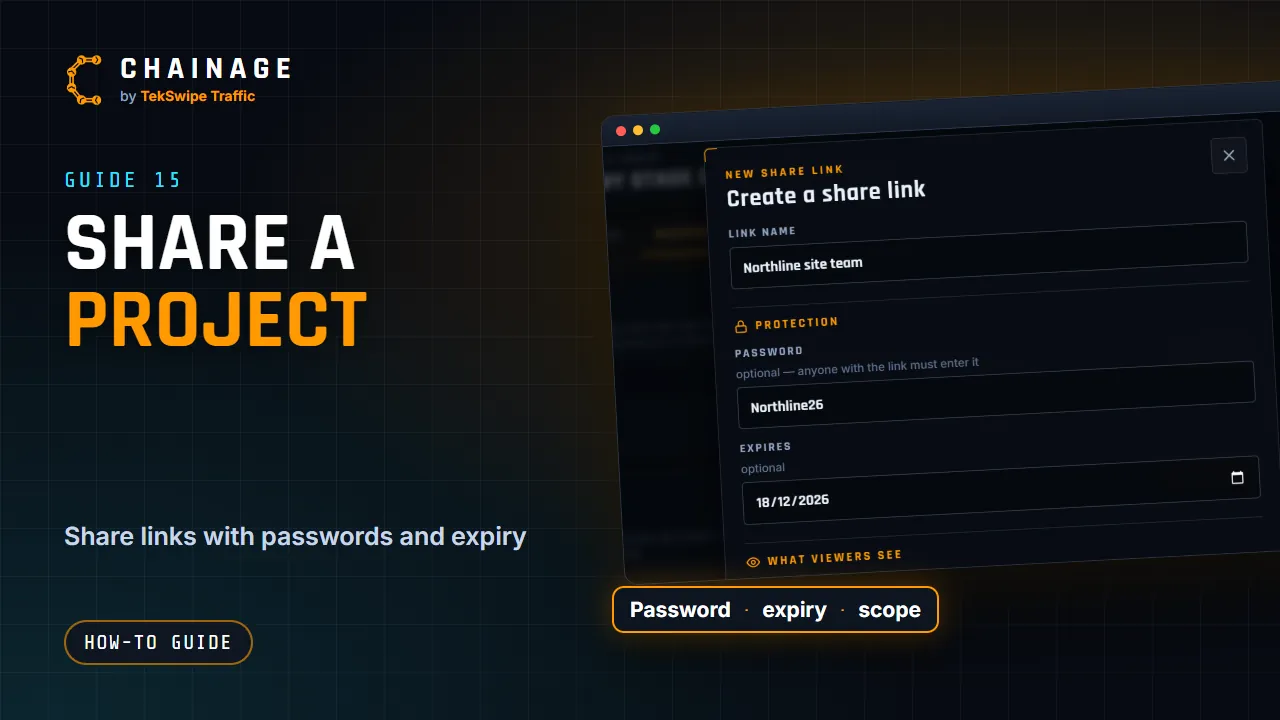
A share link opens a read-only map of the project for anyone who has it, such as a client, a subcontractor or a crew. They don't need an account.
Create a link
- Open the project hub and choose Access & sharing (or tap Share links under More, Project).
- Under Share links, tap New link.
- Fill in the settings (below).
- Tap Create link. The link is copied, ready to paste into an email or message, and its QR code shows, with Download QR.
Link settings
- Link name: so you can tell your links apart, for example “Client — stage 1”.
- Password (optional): anyone with the link must enter it. At least 4 characters.
- Expires (optional): the link works until 23:59:59 on that date.
- What viewers see: tick Notes, links and the project description, Photos, Allow downloading full-size photos and Project files (PDFs, drawings and documents from the Files tab; off unless you tick it).
- On site: Set-up link lets whoever has it set up and pack up the site (see Set up and pack up a site). Shown when your role can manage the site.
- Phases & layers: All phases (including ones added later) and All layers (including ones added later), or untick them and pick the ones to share.
Manage your links
Each link shows its name, how many times it's been viewed and when, who made it, which phases and layers it shows, and badges such as Password or Open link, Expires or Expired, No notes, No photos, No downloads and Files.
- Copy link, QR code and Open.
- Starting view: where the link opens. The project opens on the map with a bar: turn, tilt and zoom the map, choose Map, Google Maps or Satellite, and tap Set. Everyone opening the link (or its embed) starts there. Clear goes back to fitting the map to the items.
- Embed: the link as a map inside another page, such as a TekSwipe Files project. Copy code gives the code for a web page.
- Settings: change anything. For a password you can Keep password, Change it or Remove it. Changing the password signs out everyone who had unlocked the link.
- Revoke: anyone using the link loses access immediately. Other links keep working.
Company rules and permissions
A company can require a password on every link and a maximum expiry (see Company settings and security rules). The form then marks those fields as required. Roles without Create share links without a password must always set a password.
In company projects, seeing, creating and managing links depend on your role (see Roles and permissions). On a personal project, the owner manages its links.
To see a link the way your viewers will, see What people see when you share. To give someone access on their own account instead, see Share a project with people.