
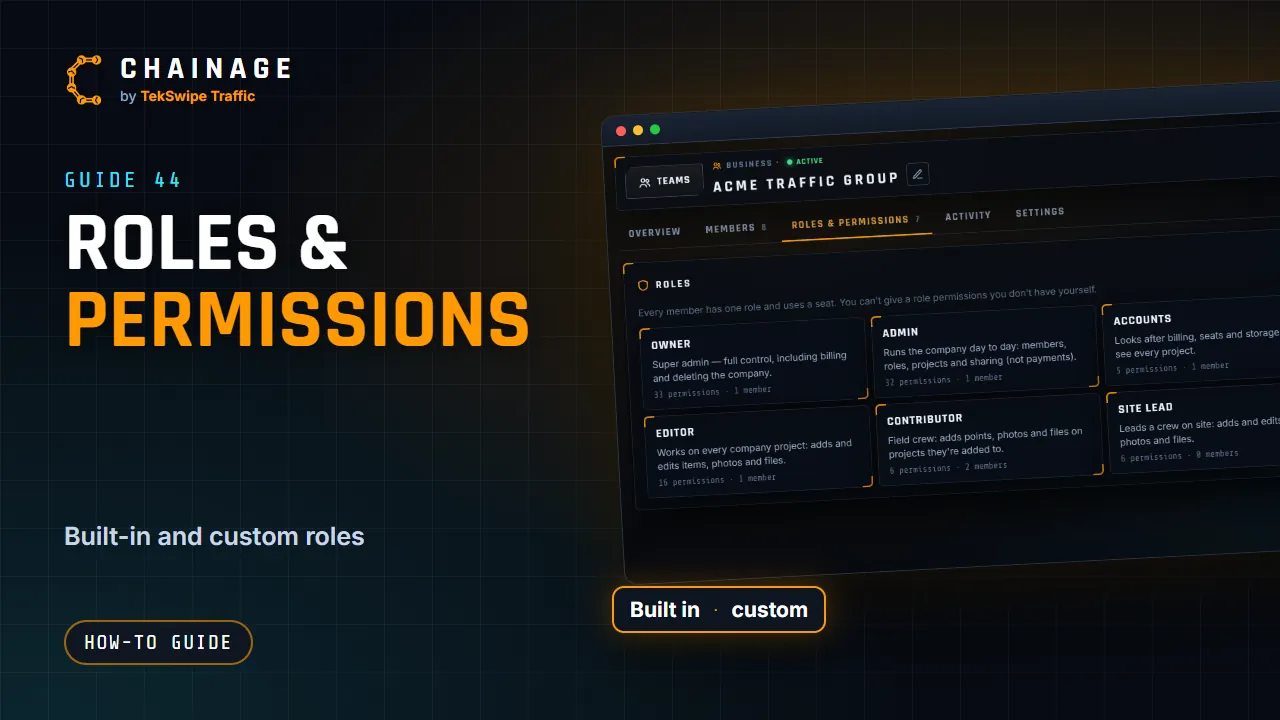
Every member of a company has one role, and the role's permissions decide what they can see and do. Six roles are built in, and you can make your own. Find them on the company's Roles & permissions tab.
The built-in roles
| Role | What it's for |
|---|---|
| Owner | Super admin: full control, including billing and deleting the company. Has every permission and can't be edited. A company has one owner. |
| Admin | Runs the company day to day: members, roles, projects and sharing (not payments). |
| Accounts | Looks after billing, seats and storage; can see every project. |
| Project manager | Creates and runs projects, controls access and share links. |
| Editor | Works on every company project: adds and edits items, photos and files. |
| Contributor | Field crew: adds points, photos and files on projects they're added to. |
Every permission, and who has it
These are the permissions as they appear in the app, and which built-in roles have them to start with (✓). Anyone who can manage roles can change the built-in roles, except Owner.
| Permission | Owner | Admin | Accounts | Project manager | Editor | Contributor |
|---|---|---|---|---|---|---|
| Company | ||||||
| Edit company name and security settings | ✓ | ✓ | – | – | – | – |
| See the member list | ✓ | ✓ | ✓ | ✓ | ✓ | – |
| Invite new members | ✓ | ✓ | – | – | – | – |
| Remove members | ✓ | ✓ | – | – | – | – |
| Change members' roles | ✓ | ✓ | – | – | – | – |
| Unlock company-managed accounts and reset their password or two-factor | ✓ | ✓ | – | – | – | – |
| Create and edit roles and their permissions | ✓ | ✓ | – | – | – | – |
| View the company activity log | ✓ | ✓ | ✓ | – | – | – |
| Billing | ||||||
| View the plan, seats, storage and invoices | ✓ | ✓ | ✓ | – | – | – |
| Change the plan, buy seats and storage, update payment details | ✓ | – | ✓ | – | – | – |
| Projects | ||||||
| See every company project (otherwise only projects they're added to) | ✓ | ✓ | ✓ | ✓ | ✓ | – |
| Create company projects and move their own projects into the company | ✓ | ✓ | – | ✓ | ✓ | – |
| Edit project details, notes, tags and status | ✓ | ✓ | – | ✓ | ✓ | – |
| Delete projects | ✓ | ✓ | – | – | – | – |
| Manage who can access a project | ✓ | ✓ | – | ✓ | – | – |
| Organise the company folder structure | ✓ | ✓ | – | ✓ | – | – |
| Export project data (GeoJSON / CSV) | ✓ | ✓ | – | ✓ | ✓ | – |
| View project activity logs | ✓ | ✓ | – | ✓ | ✓ | ✓ |
| Map content | ||||||
| Add chainage points, dropped pins and ranges | ✓ | ✓ | – | ✓ | ✓ | ✓ |
| Edit and move items they added | ✓ | ✓ | – | ✓ | ✓ | ✓ |
| Edit and move anyone's items | ✓ | ✓ | – | ✓ | ✓ | – |
| Delete items they added | ✓ | ✓ | – | ✓ | ✓ | ✓ |
| Delete anyone's items | ✓ | ✓ | – | ✓ | – | – |
| Add, rename and delete phases and layers | ✓ | ✓ | – | ✓ | ✓ | – |
| Photos & files | ||||||
| Add photos, notes and links to items | ✓ | ✓ | – | ✓ | ✓ | ✓ |
| Delete anyone's photos | ✓ | ✓ | – | ✓ | – | – |
| Upload project files | ✓ | ✓ | – | ✓ | ✓ | ✓ |
| Delete project files | ✓ | ✓ | – | ✓ | – | – |
| Sharing | ||||||
| See a project's share links | ✓ | ✓ | – | ✓ | ✓ | – |
| Create share links and edit their own | ✓ | ✓ | – | ✓ | ✓ | – |
| Create share links without a password | ✓ | ✓ | – | ✓ | – | – |
| Edit or revoke anyone's share links | ✓ | ✓ | – | ✓ | – | – |
| Share a project with people by email (view only) | ✓ | ✓ | – | ✓ | ✓ | – |
Anyone can delete their own photos if they can add photos. Members who can upload files can rename and delete their own files.
Create your own role
- On the Roles & permissions tab, tap New role.
- Give it a Name (for example “Site lead”) and a Description.
- Tick the permissions it should have.
- Tap Create role.
Tap any role's card to see its permissions or, if you can manage roles, change them and tap Save role. Delete role asks which role to move its members to.
The rules
- You can't give a role a permission you don't have yourself (those boxes are locked), or give someone a role with permissions you don't have.
- You can't change your own role, or edit the role you hold. Ask the owner or another admin.
- The Owner role can't be edited. To hand over ownership, see Company settings and security rules.
- Every member has one role and uses a seat (see Company workspaces explained).
Giving Contributors a project
Roles without See every company project, such as Contributor, only see projects they've been added to. To add someone, open the project's hub, choose Access & sharing, enter their email and choose Company role. They then work on that project with their usual role. See Share a project with people. To invite members, see Invite and manage members.