
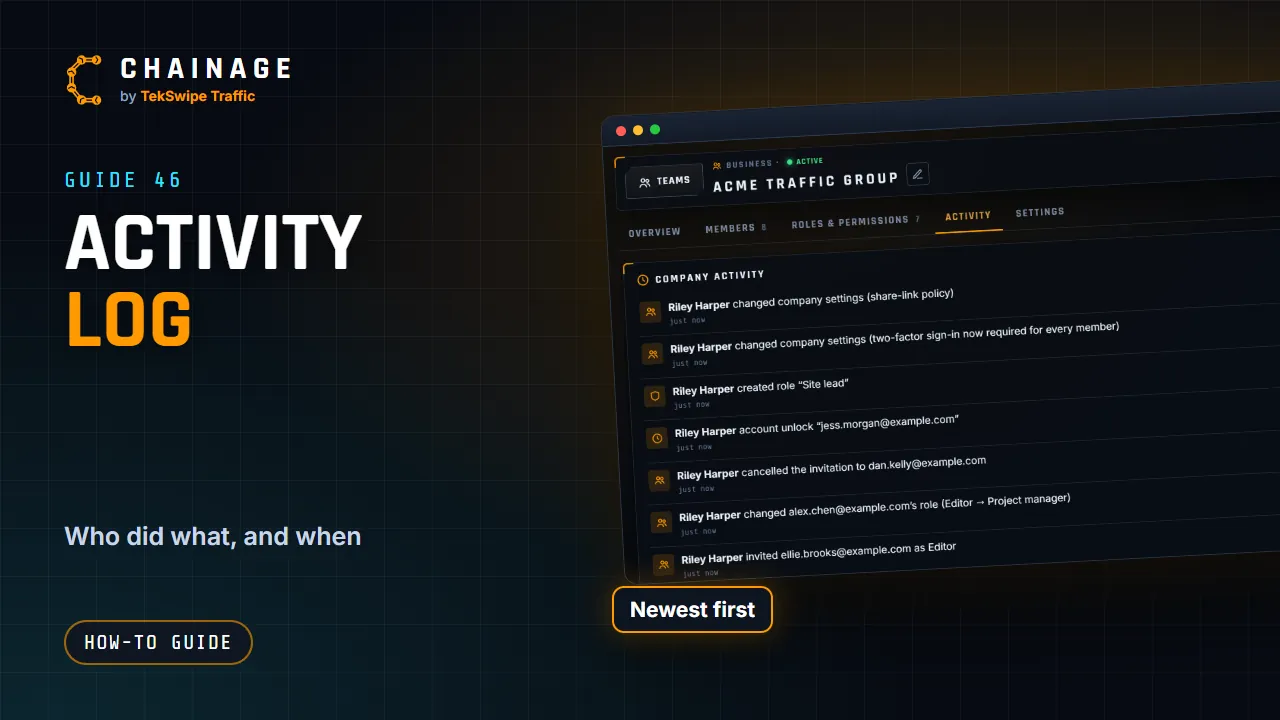
The activity log is a running record of who did what, and when, across your company.
Open the log
Open the account menu, choose Teams & companies, then your company, and the Activity tab. Entries are newest first and show the person, what they did, the project it happened in and when. Load older activity shows more.
You need the View the company activity log permission (Owner, Admin and Accounts by default). See Roles and permissions.
What's recorded
- Projects: created, details edited, moved into or out of the company, exported or deleted.
- Points and ranges: added, edited, moved, chainages changed or deleted.
- Photos, links and files: added, uploaded, edited or deleted.
- Phases and layers: added, renamed, edited or deleted.
- Share links: created, edited or revoked.
- Access: people given, changed or removed from a project, or leaving it.
- Members: invited, joined, declined, role changed, removed or left; invitations cancelled; company-managed account actions.
- Company and roles: settings changed, ownership transferred, roles created, edited or deleted.
- Billing: the subscription started or changed.
If our support team changes something for your company at your request, such as restoring data, it appears as Chainage support.
One project's activity
Each project has its own log on the Activity tab of its project hub, with filters for Points, Ranges, Photos, Files, Layers, Phases, Share links, Access and Project. In company projects it needs the View project activity logs permission. See also Company settings and security rules.