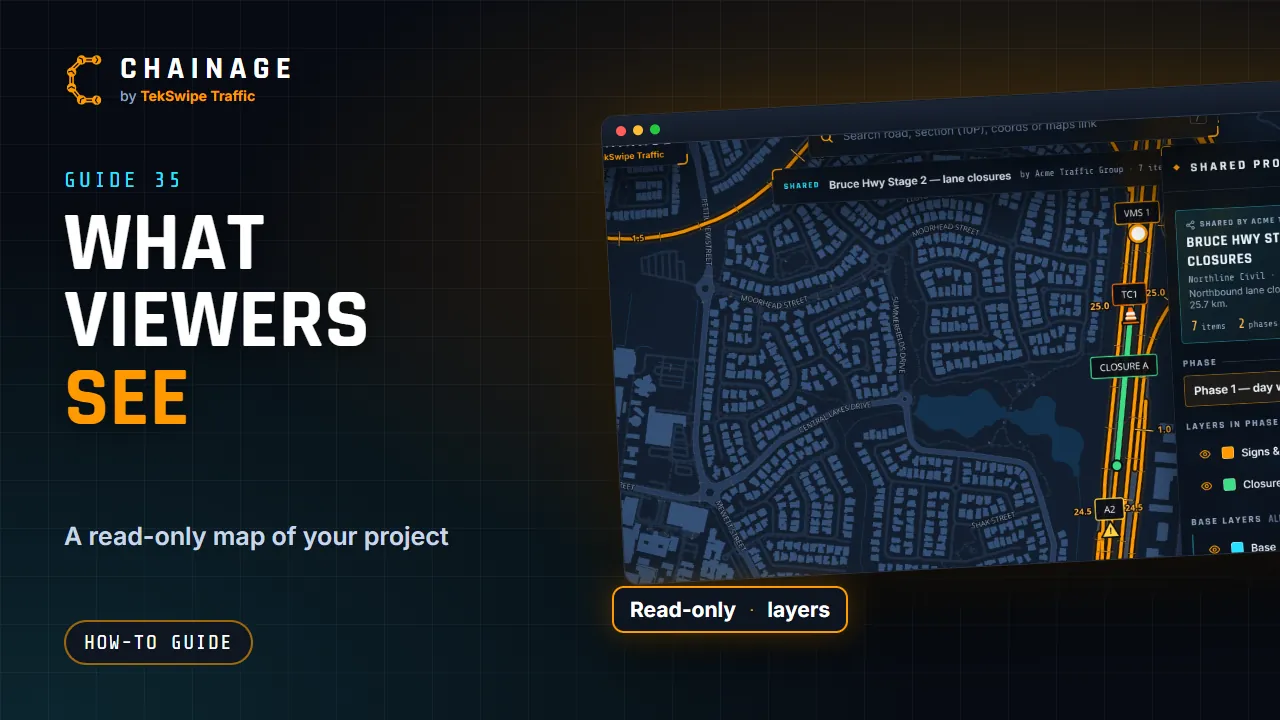
Here's what the people you share with see, so you know what to expect before you send a link.
Opening a share link
A share link opens Chainage with the shared project on the map. No account or sign-up is needed.
Password-protected links show a Locked banner and ask for the password. After Unlock, that browser stays unlocked for 12 hours, unless you change the password.
Revoked links say “This share link doesn't exist or has been revoked.”
Expired links say “This share link has expired.”
The shared view
The project bar shows the shared project's name, and the site and phase they're looking at: tap it to switch. A banner shows Shared, the project name, who shared it and how many items it has, with:
Layers: opens the project's layers (on a phone, use More).
Save to my projects (when signed in): keeps the link under Shared with me in their Projects home. It then says In your hub.
✕: leaves the shared view (when signed in).
Its tabs show the layers, the items (with a filter) and the project: who shared it, the client and reference, the description and counts, and any Project files to download (if the link includes them). Viewers can switch site and phase and hide layers. A link with a starting view opens right there, at that angle, on that base map.
Read-only item cards
Viewers can open every item the link includes. They see the title and chainage, plus:
notes and links, if the link includes notes;
photos, if the link includes them (otherwise “Photos aren’t included in this link.”), with Download only if you allowed it;
Road & traffic data, Street View, Google Maps and Copy coords.
They can't edit, move or delete anything, and they don't see who saved each item. The rest of the map works as usual, so they can look up chainages and share a point too.
People you shared with by email
People you added by email open the project from Shared with me in their Projects home, in their own account. As viewers, they can look but not change anything, until you remove them.
Share a project with a link▶Create read-only share links for a project, choose what they show, protect them with a password and expiry date, and revoke them any time.
Share a project with people▶Give someone access to one project by email. It appears under Shared with me on their own free account.