
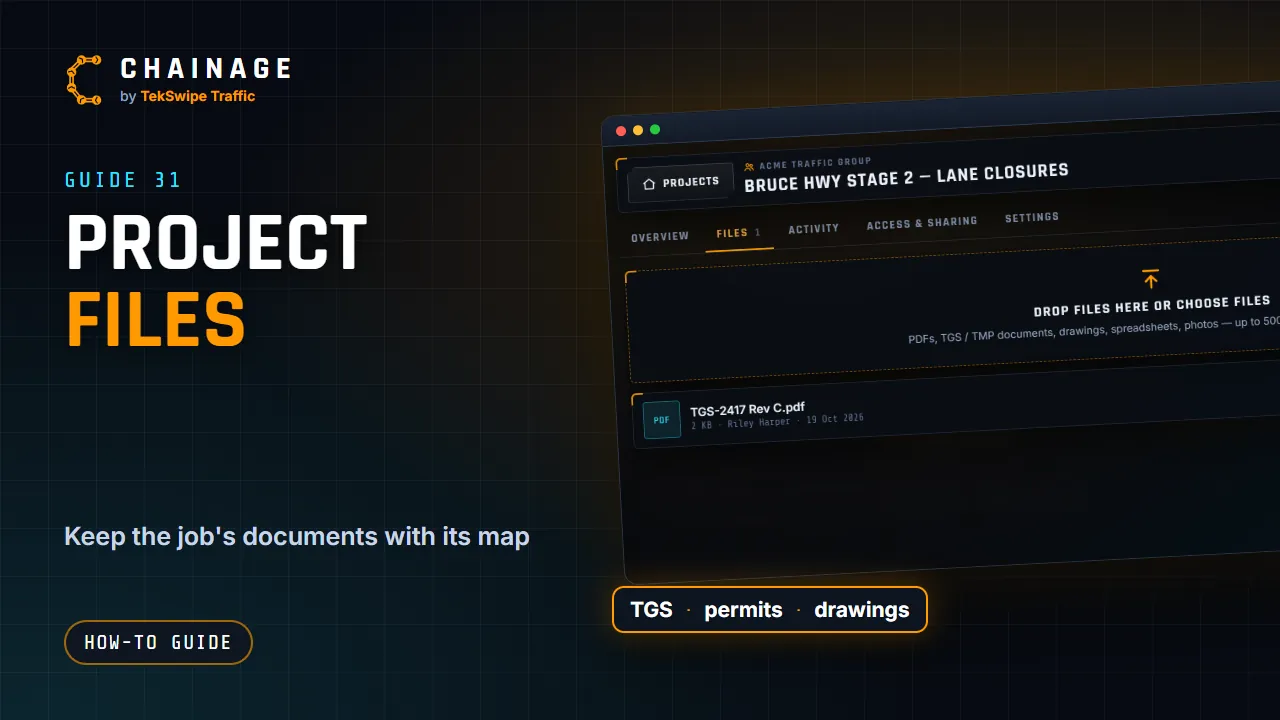
The Files tab keeps the current TGS, TMP, plans and permits with the job, so everyone works from the same version.
Upload files
- Open the project hub and choose the Files tab.
- Drag files onto Drop files here or choose files, or tap it to choose them.
- Each file can be up to 500 MB. The box also shows how much free space you have.
Any type of file works: PDFs, TGS and TMP documents, drawings, spreadsheets, CAD files, KML and KMZ files, photos and video.
Uploading big files
Files upload one after another in a queue, each showing Waiting…, then a percentage, then Done. Big files are sent in small pieces, and a piece that fails is retried automatically, so a patchy connection is usually fine. Keep the page open until the uploads finish. If one fails, you'll see why; dismiss it and try again. A message tells you when your files are uploaded.
Working with files
Each file shows its type (PDF, IMG, XLS, DOC, PPT, CAD, ZIP, GIS or VID), name, size, who uploaded it, the date and any note.
- View (eye icon): opens PDFs, images (PNG, JPEG, WebP, GIF) and MP4 videos in the browser.
- Download: saves a copy.
- Rename / note (pencil): change the name (up to 120 characters) and add a note (up to 300), for example “Rev B — approved by TMR 12/10”.
- Delete (bin): removes it for everyone with access. This is permanent.
KML and KMZ files are kept as files: Chainage doesn't draw them on the map.
Storage and permissions
Files count towards your storage, or the company's pooled storage for company projects. When storage is full, new uploads wait until you free up space or add more. See Upgrade to Professional and add storage.
In company projects, uploading and deleting files depend on your role. If you can upload, you can rename and delete your own files. To let share-link viewers download files, tick Project files on the link. See Share a project with a link.