
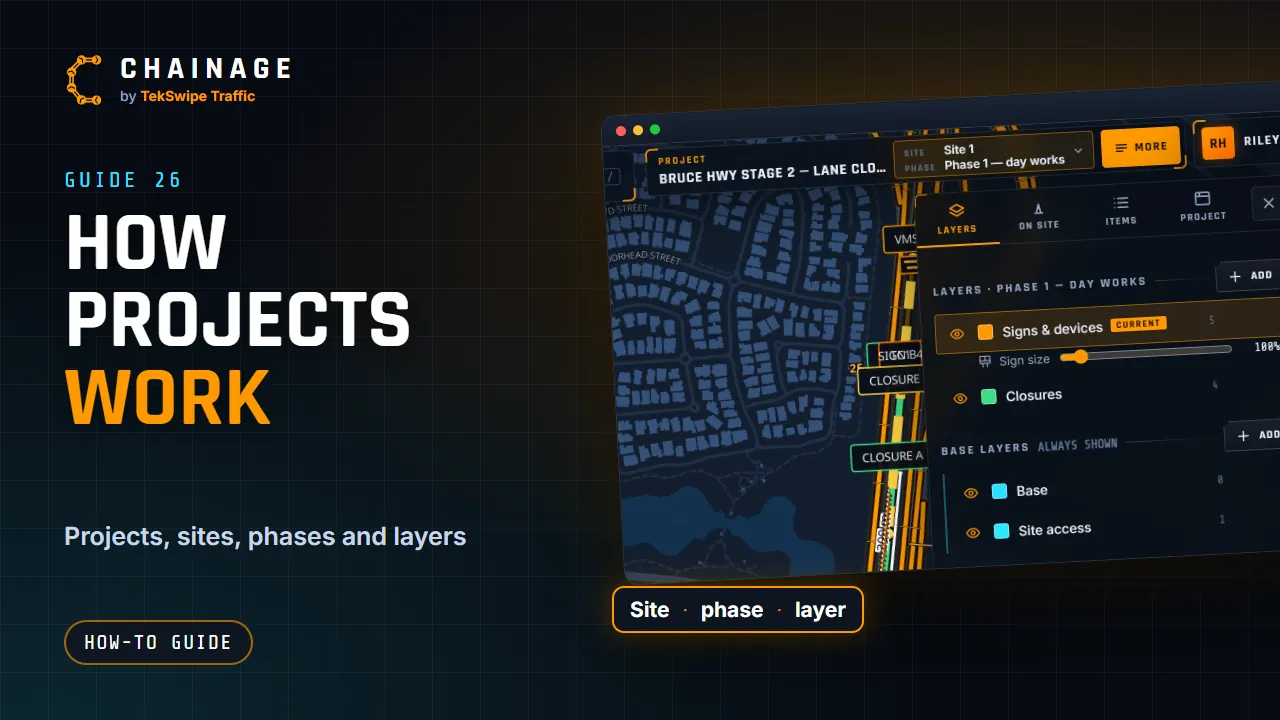
A project holds everything for one job: the signs, points, ranges and drawings you save, their photos and notes, the job's files and a record of who did what.
What's in a project
- Saved chainage points, dropped pins and chainage ranges, each with photos, notes and links.
- Signs, PTSS lights, VMS boards and hazard markers, and drawings: measurements, areas, lines, notes and runs of cones.
- Project details such as the client, job number, status, dates and notes.
- Project files: plans, TGS and TMP documents, drawings and spreadsheets.
- An activity log, the people who can open it, and its share links.
All of this lives in the project hub, and you can find any project in Projects home.
Sites, phases and layers
Sites are the places the job works at, such as a ramp and an intersection down the road. Each site has its phases, the stages of the work, for example Day works or Night works. Each phase has its own layers, such as Signs, Closures and Detours. Base layers show in every phase, which suits things that don't change: existing conditions, site boundaries or permanent assets.
A new project starts with Site 1, holding Phase 1 with a General layer, and a Base base layer. See Organise a job with sites, phases and layers.
The project bar and More
When a project is open, a bar shows it at the top right on a computer, or under the CHAINAGE logo on a phone. It has:
- the project name: tap it to open the project hub;
- the Site and Phase you're in: tap them to switch, or to add or rename a site or phase;
- More, which opens the project's card with four tabs:
- Layers: the layers in this phase and the base layers. New items go into the current layer;
- On site: setting up and packing up (see Set up and pack up a site);
- Items: everything on the map, with a filter and the manifest;
- Project: the project's details, Project hub, Share links, All projects, Projects on map, Close project, and its sites and phases.
Closing a project takes its items off the map so you can use the map on its own (“Closed … — open it again from Projects”). You can also choose Close this project in the account menu.
Personal and company projects
- Personal projects belong to you. The free Starter plan includes up to 10, each with up to 2 sites of 3 phases (see Plans).
- Company projects belong to a company. They use the company's pooled storage, and each person's role decides what they can see and do. See Company workspaces explained.
- Projects other people share with you appear under Shared with me. See Share a project with people.
Ready to start? See Create a project.