
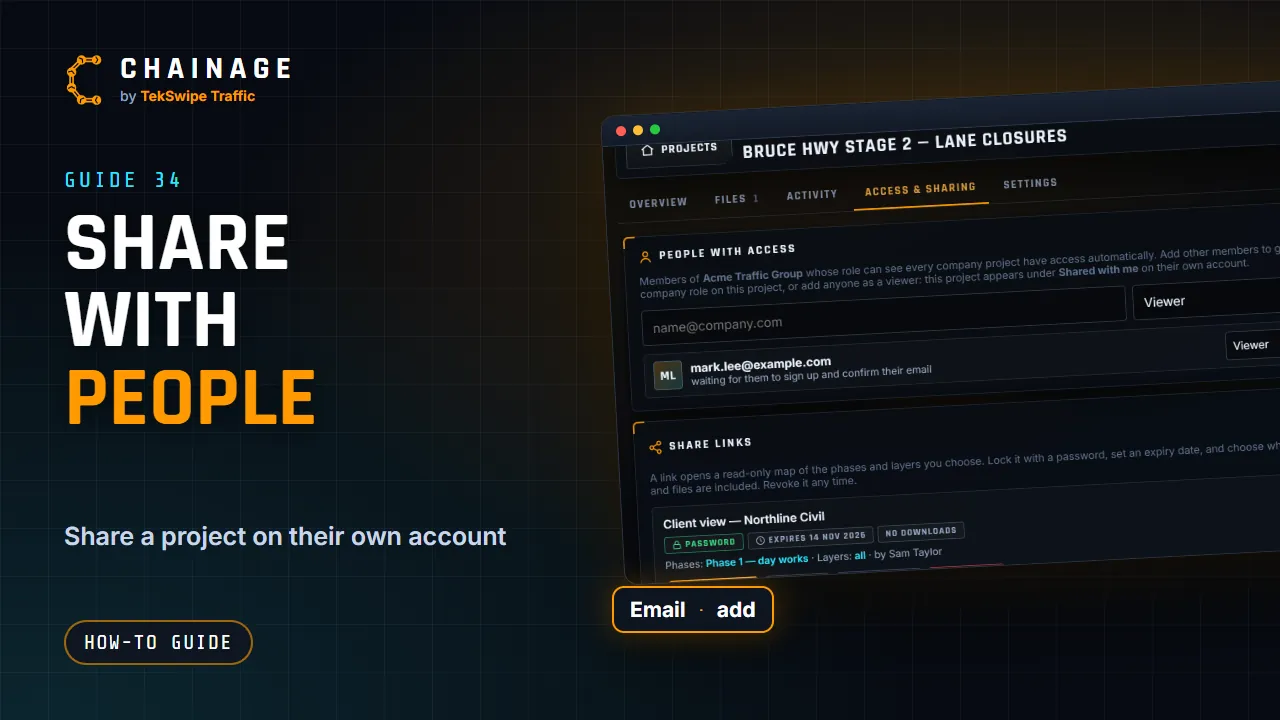
Instead of a link, you can share a project with a person by email. It then appears in their own account, under Shared with me.
Add someone
- Open the project hub and choose Access & sharing.
- Under People with access, enter their email address.
- On a company project, choose Viewer or Company role (see below).
- Tap Add.
If they already have a confirmed Chainage account, they have access straight away. If not, they're listed as “waiting for them to sign up and confirm their email”, and get access as soon as they do.
What they get
- The project appears under Shared with me in their Projects home, and they open it like any other project.
- As a Viewer, they can look but not change anything.
- They only need a free account (see Create your free account). They aren't company members and don't use a seat.
- They can file it in their own folders (only they see that), or leave it from the project's Settings tab.
Personal and company projects
- Personal project: only you can edit it. Anyone you add can view it for free.
- Company project: members whose role can see every company project have access automatically. Add another member with Company role to give them their usual role on this project (this is how Contributors get access to a project). Add anyone else as a Viewer.
Company role is only for members of the company. See Roles and permissions.
Change or remove access
On a company project, change someone between Viewer and Company role with the dropdown next to their name. The bin removes them: they lose access to the project straight away.
In company projects, sharing by email needs Share a project with people by email (view only), and changing or removing anyone's access needs Manage who can access a project. For sharing without accounts, see Share a project with a link.