
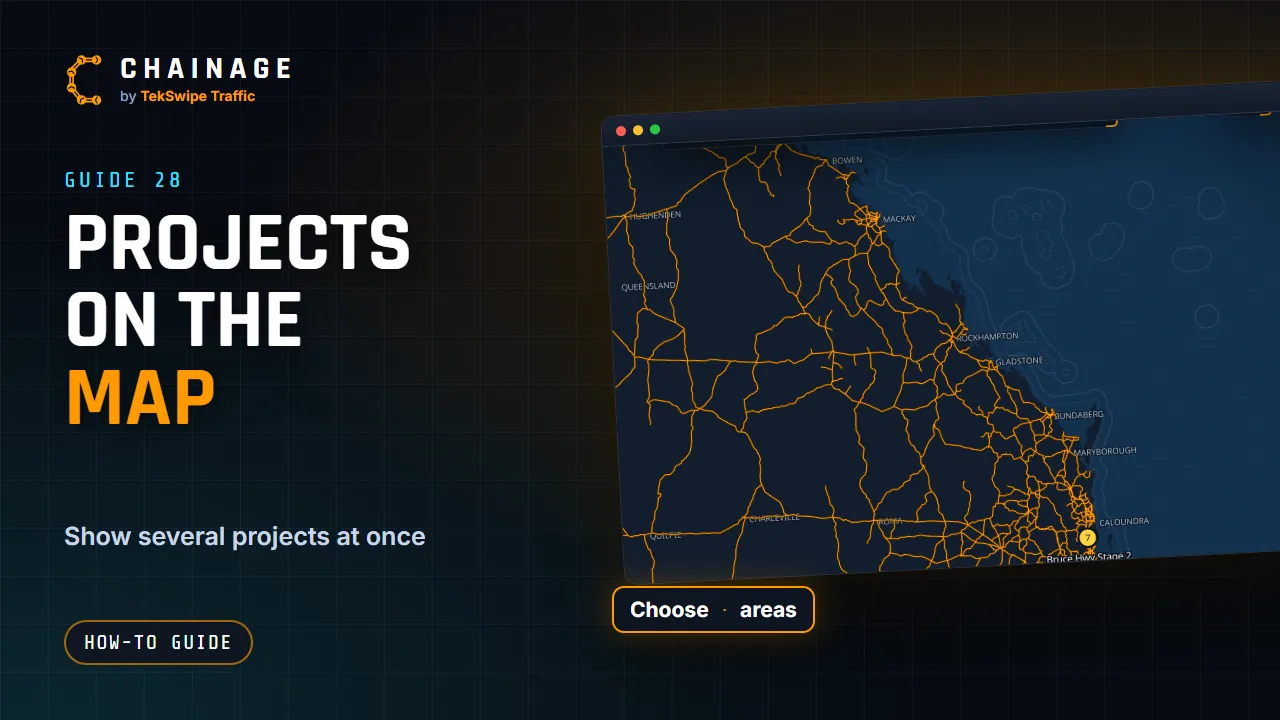
You work on one project at a time, but you can show others on the map too, or see where all your projects are at a glance.
Open Projects on the map
Any of these opens the Projects on the map window (you need to be signed in):
- the Projects on the map button on the toolbar (two circles);
- Projects on map under More, Project.
It has two tabs: Choose projects and Areas overview.
Choose projects
- Tick the eye next to each project you want to see. Use the search box to find one quickly.
- Show all ticks them all. Only the one I’m editing clears the others.
- The project you're editing is marked Editing. Tap Edit on another project to switch to it.
Other projects show faded and view-only. Tap Done when you're finished.
Areas overview
Turn on Show project areas on the map to see a coloured circle wherever a project has work. Each project has its own colour, and places far apart show as separate areas. Show all areas zooms out to fit them all.
Point at an area (on a computer) or tap it (on a phone) to light up every area of that project. The area card offers Work on this project, Show its items on the map (or Hide its items from the map) and, when it has more than one area, Zoom to all its areas. When you're zoomed in, tapping a road inside an area still finds its chainage.
Items from other projects
Tap an item from another project and you get a view-only card with Work on that project (to switch and edit it) and Hide this project from the map. To edit, add photos or save to that project, switch to it first.
Which projects are shown is remembered on this device. The toolbar button shows how many are showing (+N). See also How projects work and Projects home.