
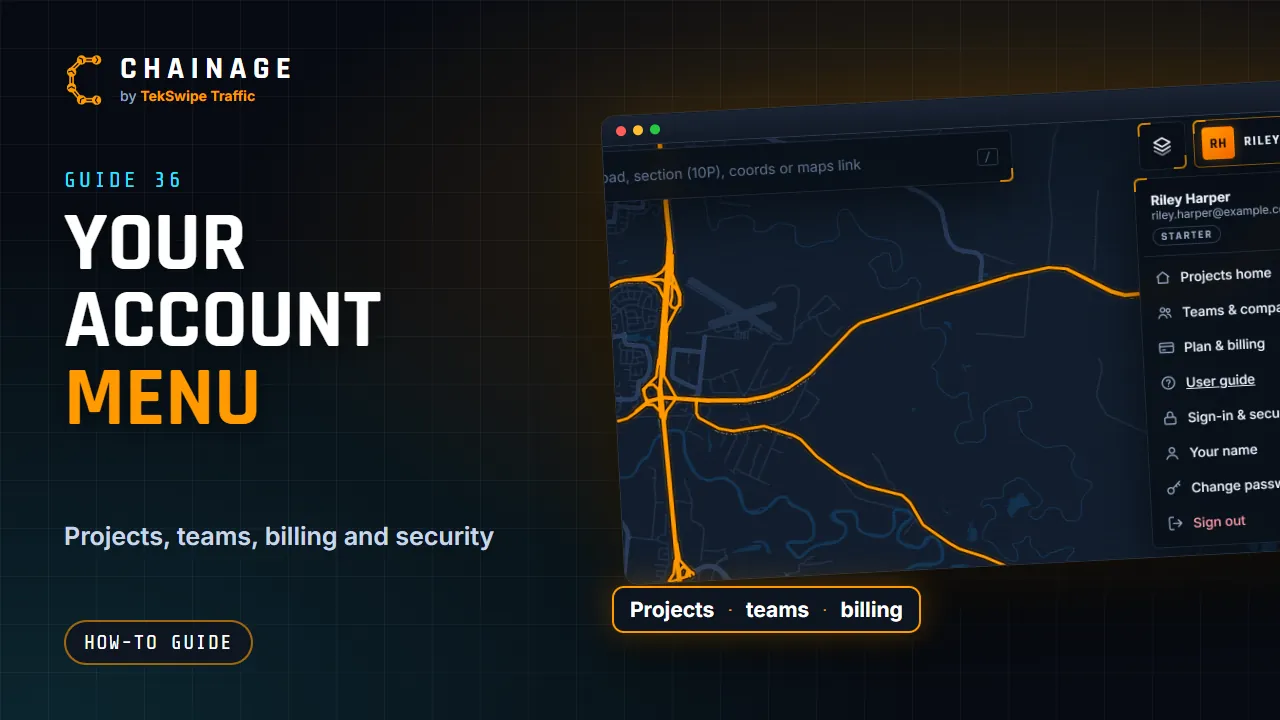
The account menu is the way into everything about your account. Tap your name or initials at the top right (on a phone, just your initials) to open it.
At the top
Your name, your email address and a chip showing your plan: Starter, Professional, and so on.
What's in it
| Item | What it does |
|---|---|
| Confirm your email | Only shows until you've confirmed. Sends a new confirmation link. See Create your free account. |
| Invitations | Only shows when a company has invited you. Opens Teams & companies to accept or decline. |
| Projects home | Every project you can open. See Projects home. |
| This project’s hub | When a project is open. See The project hub. |
| Close this project | When a project is open. Takes it off the map. |
| Teams & companies | Your companies, invitations, and creating a company. See Company workspaces explained. |
| Plan & billing | Your plan, storage and payment details. See Upgrade to Professional and add storage. |
| User guide | Opens this knowledge base. |
| Sign-in & security | Two-factor sign-in, signed-in devices, your password, company management and your data. Shows ! when two-factor needs attention. |
| Your name | Changes the name shown to your team. |
| Change password | See Sign in, reset your password and stay signed in. |
| Sign out | Signs this device out. |
The alert dot
A dot on the account button means something needs you: a company invitation, an email address to confirm, or two-factor sign-in to set up (for example because a company you belong to requires it).
Change your name
- Open the account menu and choose Your name.
- Type the name you want your team to see.
- Tap Save.
There's no option to change your email address in the app. Email support@tekswipe.com.au if you need to.