
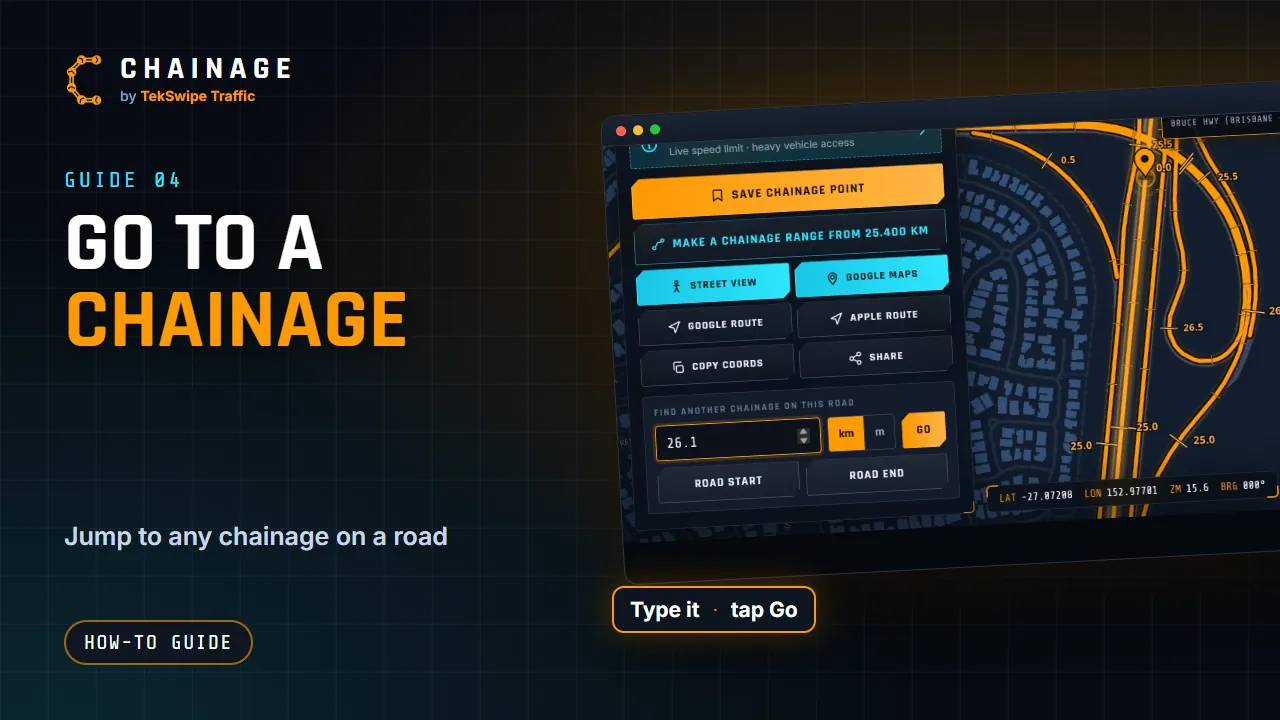
Know the chainage but not where it is? Chainage can take you straight there.
From search
- Open search and type the road name or section number.
- Pick the road. Each result is one carriageway, so check the cwy shown on the row.
- Under Chainage on the road, type the chainage. The hint underneath says how far the carriageway runs, for example “This carriageway runs from 0 to 40.218 km.”
- Choose km or m, then tap Locate (or press Enter). Road start and Road end jump to either end.
The pin drops on the road and the card opens with the badge Search result. If you type a value past the end of the road, the pin goes to the end and the card says “(clamped to the road's length)”.
From a result card
Any chainage card for a road has Find another chainage on this road near the bottom. Type a value, choose km or m and tap Go. Road start and Road end work here too. You stay on the same road section and carriageway.
Kilometres or metres
Chainage 25.306 km is the same as 25,306 m, written CH 25+306. The km / m toggle is remembered on this device.
If you type a number in km that only makes sense in metres (for example 25305 on a 40 km road), Chainage asks Switch to metres? Choose Yes, use metres to go there.
To build a link to a chainage instead, see Direct lookup links. For how sections and carriageways work, see Road sections and carriageways explained.