
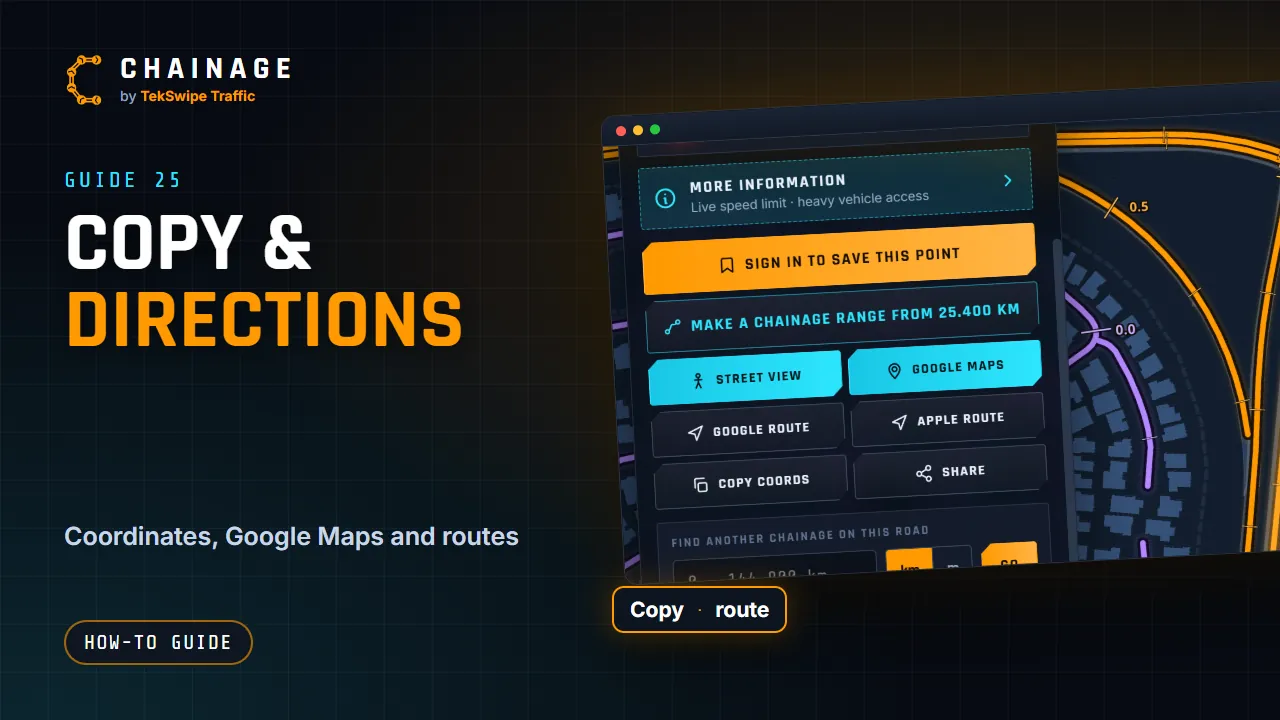
The chainage card has quick buttons for copying the location and getting there.
Copy the chainage or coordinates
- The copy icon next to the chainage copies it, for example 25.306 km.
- Copy coords copies the latitude and longitude to 6 decimal places, for example -27.470500, 153.026000.
A message confirms what was copied. Saved points and ranges have the same buttons on their cards.
Open in Google Maps
Google Maps opens View on Google Maps, with a small map of the point. Tap Open in Google Maps app to open it in the Google Maps app on your phone, or in a new tab on a computer.
Get directions
When the point is on or near a road, the card also has Google route and Apple route. Each opens driving directions to the point in that maps app. Apple route works best on an iPhone, iPad or Mac.
Heads up
Set up your route before you drive, and don't use Chainage while driving.
To send the point to someone else, see Share a location. For more shortcuts, see Tips and keyboard shortcuts.