
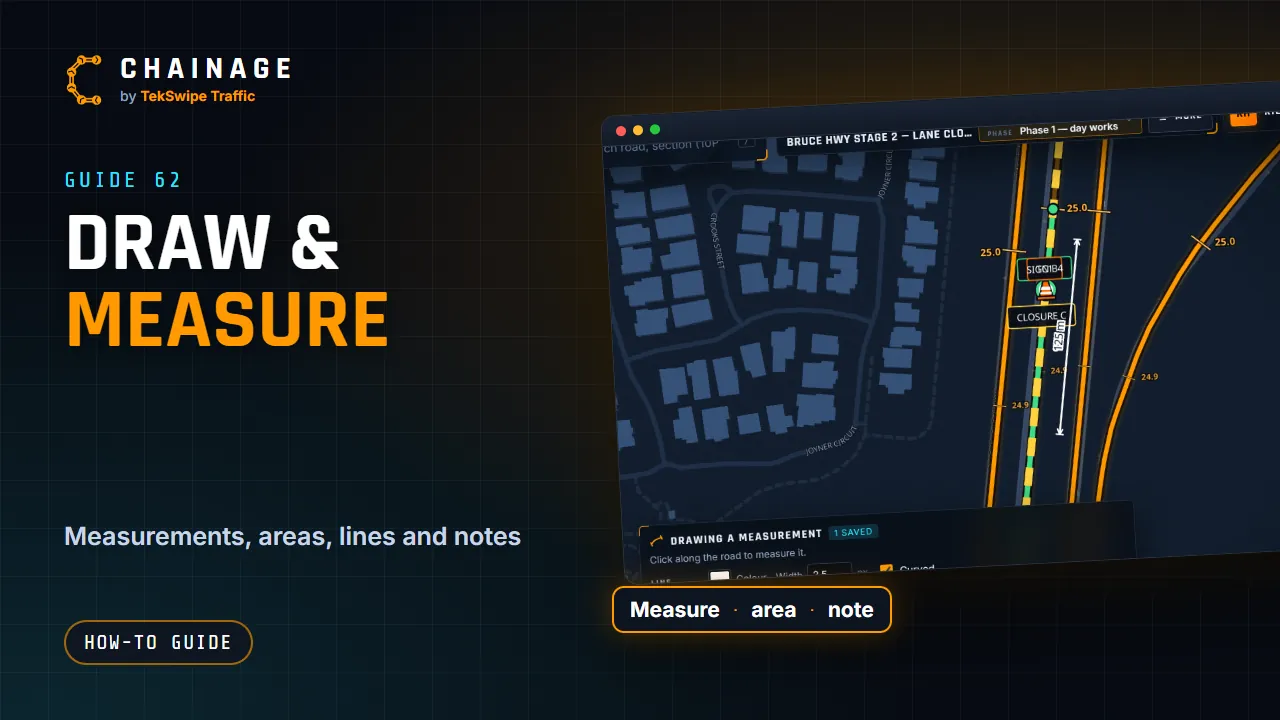
The pen draws on a project's map: measurements along the road, areas, lines and notes. Each drawing is saved to the project, in the current layer.
The pen
The pen button sits under the map buttons on the right. Tap it and choose Measurement, Area, Line, Road cones, Note or Sign or object. You need a project open that you can add to. (For road cones, see Cones, bollards, barriers and fencing; for signs, Add a sign.)
Drawing
- Click to add each point. The length (or for an area, its size) shows as you go.
- Right-click saves it and starts the next one, in the same style.
- Double-click, or tap Finish, saves it and stops.
- Undo (or Backspace) takes away the last point. Drag a point to move it.
- Cancel (or Esc) stops without saving. After a right-click it reads Done.
A measurement shows its length along its line, with arrows and ticks at the ends. An area shows its size in square metres (or hectares) and the distance round it. A note pins a short comment to the map.
Its look
The panel sets how each kind looks, with colour pickers and sizes:
- Measurement: the line's colour and width, and Curved; the arrows' Style (arrow and tick, arrow, open arrow, tick, dot or none), Ends (both, start or end), size and colour; the text's colour and size; and a Border.
- Line: colour, width, solid, dashed or dotted, Curved, and a border.
- Area: colour, edge width, Mesh (cross-hatching), Curved, and a border.
- Note: its plate's colour.
Set as default makes every new drawing of that kind start in this style, on this device.
Change a drawing
Double-click a drawing to edit it:
- drag its points to move them;
- hold Ctrl and click the line to add a point, or click a point to take it away;
- double-click an end to carry on drawing from there;
- right-click saves and keeps you editing; Save saves and stops.
Click a drawing once to open its card, with its length or area, notes, photos, links and Delete. Picked, you can drag the whole drawing to move it. To restyle several at once, see Pick several items, copy and undo.