
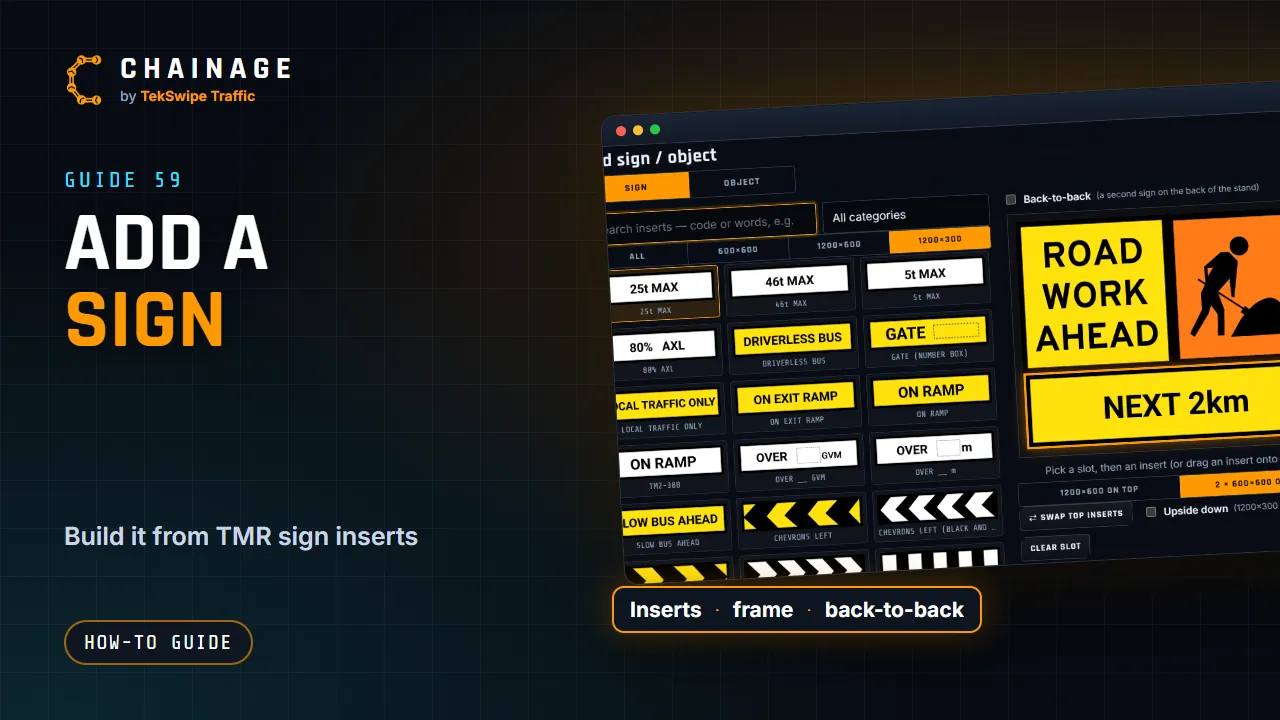
Chainage can put real signs on a project's map: multi-message signs built from the inserts in the TMR sign library, standing exactly where they go on site.
Start a sign
You need to be signed in, with a project you can add to. Then either:
- click the road (or the verge) where the sign goes, and tap Add sign / object on the card;
- pick Sign or object from the pen under the map buttons, then click where it goes; or
- in Street View, tap Add sign / object and it's placed on the ground where you're looking, facing you.
A sign goes exactly where you click. It isn't snapped onto the road, because signs stand a few metres off it, but its chainage and its distance from the road are still worked out and kept.
The sign designer
The designer opens on Sign. On the right is the frame; on the left, the library.
- Top of the frame: 1200×600 on top (one insert) or 2 × 600×600 on top (two side by side). Under it is a 1200×300 strip.
- Pick a slot, then tap an insert to put it there, or drag an insert onto a slot. An insert of another size goes in the slot that fits it.
- Search inserts by code or by words, for example TM1-1, road work or 40. Codes match without their punctuation, and plurals find the singular. Narrow it with the category list and the size buttons (All, 600×600, 1200×600, 1200×300).
- Recently used inserts show first, on this device.
- ⇄ Swap top inserts swaps two 600×600 inserts, Upside down puts the 1200×300 strip on top, and Clear slot empties the selected slot.
The list under the frame spells out each insert, with its code and its position (top left, top right, bottom strip).
Back-to-back signs
Tick Back-to-back for a second sign on the back of the same stand, for traffic coming the other way. Front and Back switch between the two faces, and each is built the same way.
Save it
Tap Next. Choose the project and layer (or make a new one), give it a title and a map label such as A3, add notes if you like, and tap Save sign. It stands on the map at that spot, with its card open.
To change the inserts later, tap Edit sign on its card. To turn it, move it or change its size, see Move, turn and size signs. For PTSS lights, VMS boards and hazard markers, see PTSS lights, VMS boards and hazard markers.
The sign library
The inserts come from the TMR traffic management sign stocktake, including the TC and TM series, speed signs and the strips that go under them. Each shows its TMR code where it has one. If an insert you use is missing, let us know.