
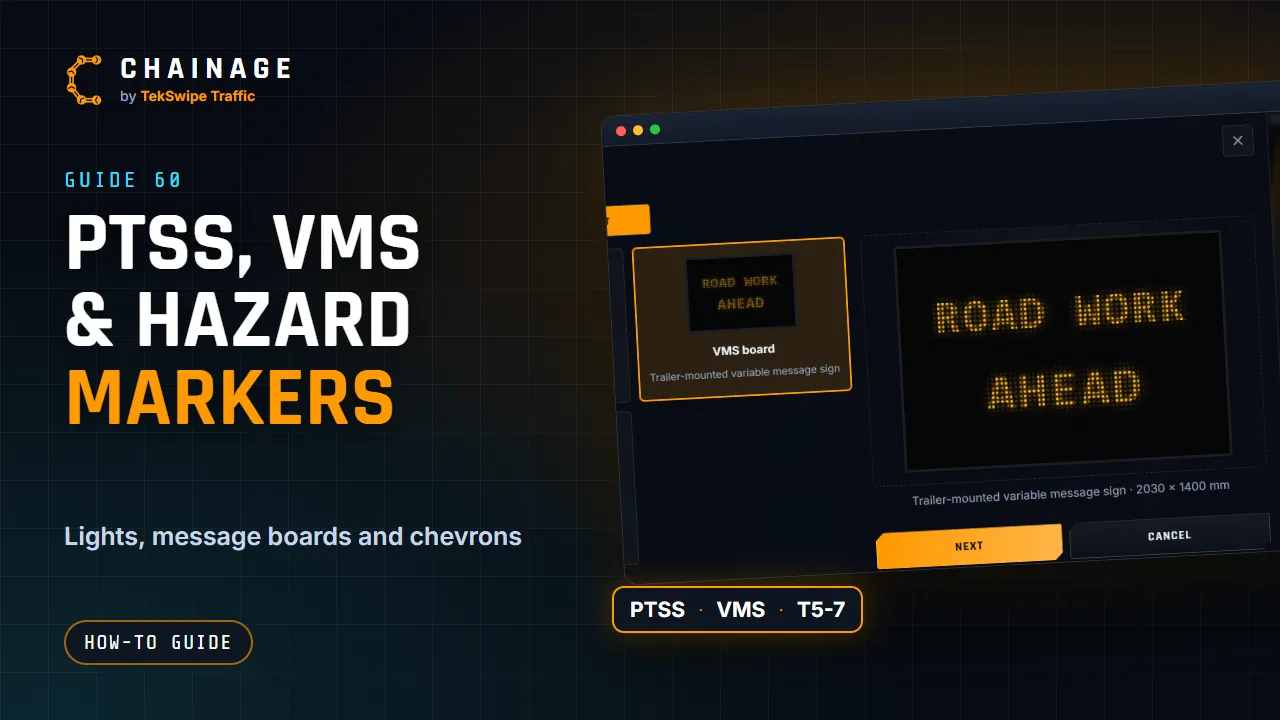
As well as signs, you can place the other things that stand by the road on a traffic control job: portable traffic signals, VMS boards, hazard markers, a ute with an arrow board and traffic controllers.
Add an object
Start the same way as a sign (see Add a sign): click where it goes and tap Add sign / object, or use Sign or object from the pen. In the designer, switch to Object and pick one.
PTSS light
A portable traffic signal: a three-light lantern and target board on a tripod. Under Light showing, choose Red, Amber or Green. The light shows on the map symbol, the picture and the 3D model.
VMS board
A trailer-mounted variable message sign.
- Size: B (2030 × 1400 mm) or C (2700 × 1800 mm).
- Message: up to 3 lines of 12 characters. Type it, or tap a ready-made message such as Road work / Ahead, Expect / Delays or Lane / Closed.
The board shows the message as the crew will see it, in amber lights.
Hazard marker (T5-7)
A 250 × 1200 mm chevron board. Under Chevrons point, choose Left or Right.
Ute with arrow board
A ute with a 1500 × 750 mm flashing arrow board raised on its tray, as used in an additional warning area. Under Arrow points, choose Left or Right: the way traffic is to move over. The arrow board faces the traffic coming up behind the ute.
Traffic controller
A traffic controller with a stop/slow bat. Under Bat showing, choose STOP or SLOW. The TGS builder puts one at each end of a stop/slow site.
On the map
Tap Next, then save it to a project and layer like a sign. Each object has its own symbol on the map, seen from above, and stands up when you tilt the map in 3D and in Street View. You can move it, turn it (Rotation) and size it (Size on the map) just like a sign (see Move, turn and size signs), and change it later with Edit object on its card.