Find my chainage needs your permission to use your device's location. If you said no, or your device has location turned off, here's how to fix it.
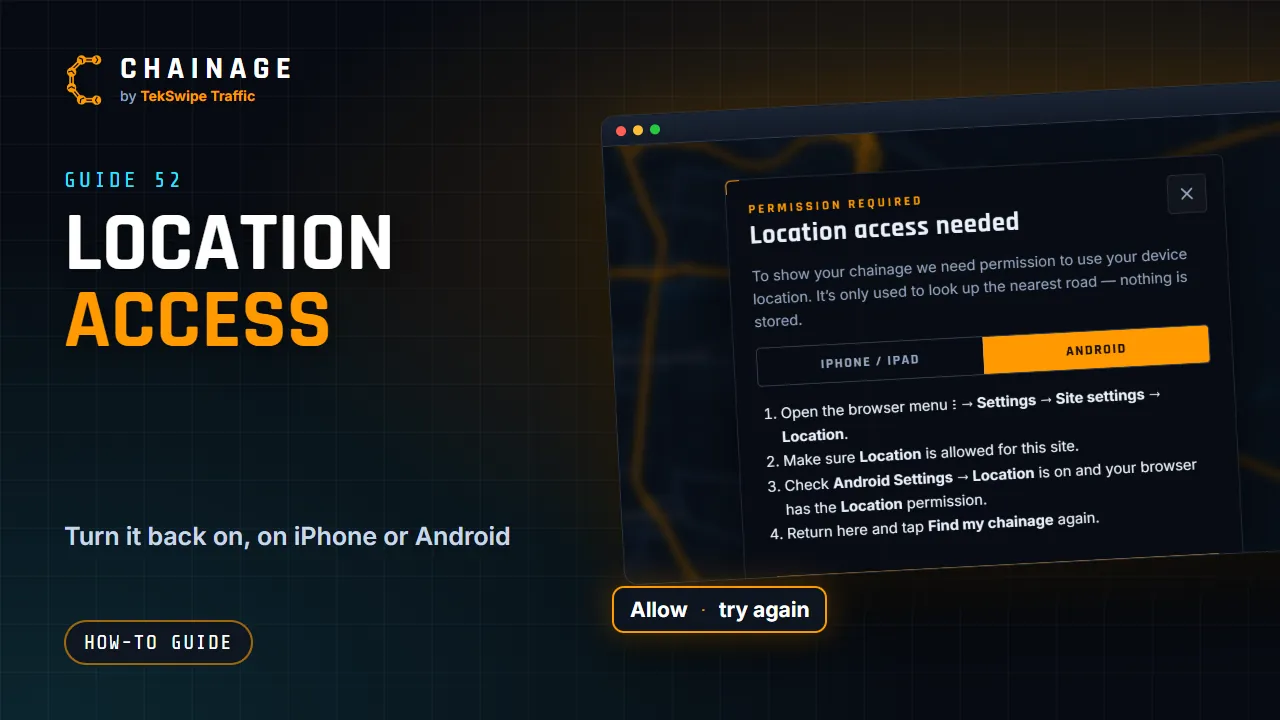
The Location access needed dialog
If your browser blocks location, Chainage shows Location access needed, with steps for iPhone / iPad and Android on separate tabs. Follow them, then tap Try again. Your location is only used when you ask, to look up the nearest road.
iPhone and iPad
Open Settings → Privacy & Security → Location Services and make sure it's on.
Scroll to your browser (Safari or Chrome) and set it to While Using the App.
In the browser, tap the aA or ⋮ menu, then Website Settings, and allow Location.
Come back to Chainage and tap Find my chainage again.
Android
Open the browser menu ⋮ → Settings → Site settings → Location.
Make sure Location is allowed for this site.
Check that Android Settings → Location is on and your browser has the Location permission.
Come back to Chainage and tap Find my chainage again.
On a computer
Click the icon at the left of the address bar, open the site settings or permissions, and allow Location. Then reload the page. Computers usually work out their position from Wi-Fi, so it's much less accurate than a phone's GPS. On a computer, clicking the map is usually better.
Location unavailable or timed out
If you see “Location unavailable — move to open sky and try again.” or “Location timed out — please try again.”, your device couldn't get a fix in time:
Move out from under cover, away from tall buildings or out of a cutting.
Wait a few seconds and tap Find my chainage again.
The chainage doesn't look right▶What to check when a chainage looks wrong: snapping, the road and carriageway, GPS accuracy, council roads and roadside markers.
How accurate is Chainage?▶How Chainage works out chainage from TMR reference points, how close it is to TMR's data, and when to double-check.
Where the data comes from▶The sources behind Chainage: TMR open data for roads, chainage, traffic and speed signs, plus OpenStreetMap, the NHVR, councils and Google.
Frequently asked questions▶Quick answers about Chainage: cost, accuracy, coverage, offline use, accounts, sharing, exporting, plans and payments.
Background reading
How to find the chainage of where you're standingStep by step: get the TMR road, section and chainage of your exact spot on a Queensland state-controlled road with your phone's GPS, and check it's the right one.