
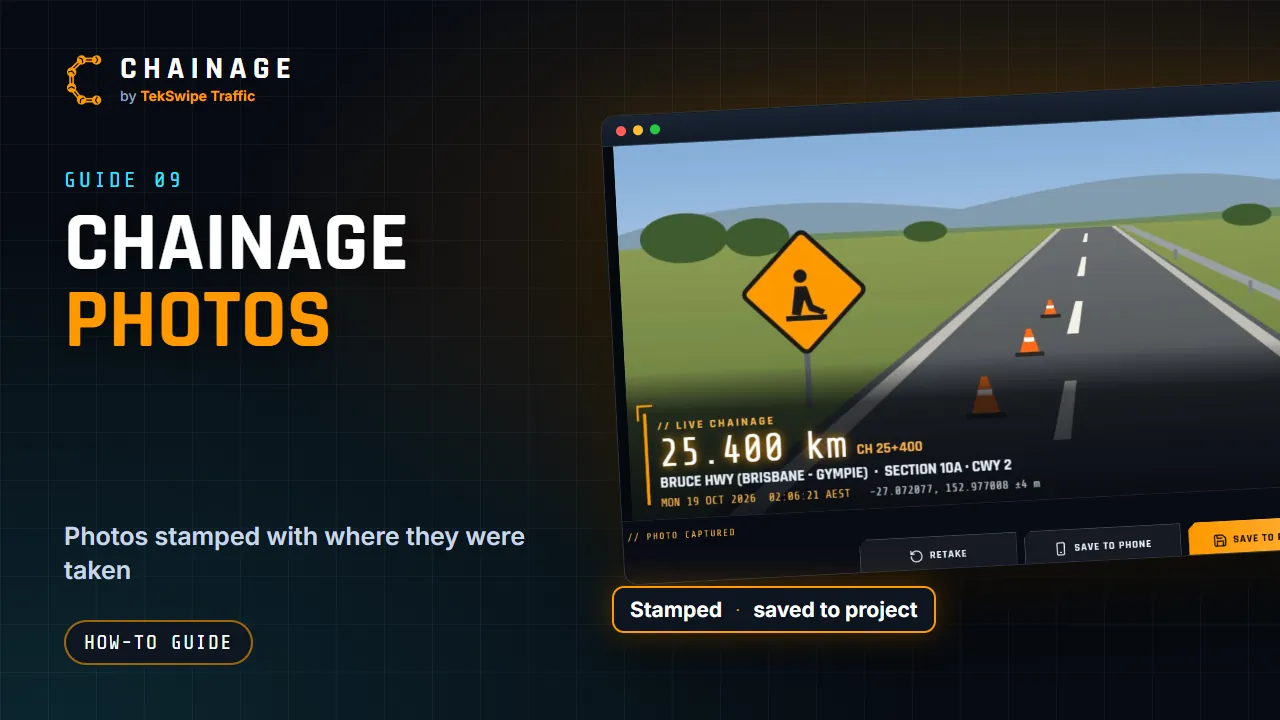
The chainage camera stamps every photo with where and when it was taken, so there's never any doubt later.
Open the camera
- While live tracking, tap the round camera button next to the chainage at the bottom of the map.
- Or tap Chainage photo on the live chainage card.
- For a saved point, tap the Camera tile under its photos. See Edit, move and add photos to saved items.
The first time, your browser asks to use the camera. Allow it.
The viewfinder
Along the top are Close, the status (for example LIVE CHAINAGE) and the time. The readout shows the chainage, the road, section and carriageway, a note and your GPS position. At the bottom are Phone camera, the shutter and Flip (when your device has more than one camera).
On a keyboard, Space or Enter takes the photo and Esc closes the camera.
What the stamp shows
- LIVE CHAINAGE, NEAREST CHAINAGE, CHAINAGE POINT or CHAINAGE RANGE.
- The chainage in large type, and the CH km+m marker.
- The road, section and carriageway.
- A note, such as the distance from the road, or the saved point's label and title.
- The date and time, with the time zone.
- The latitude and longitude, with the GPS accuracy.
- The Chainage name and chainage.com.au, when the photo is wide enough.
Photos on council roads get a violet stamp.
After you take it
- Retake: try again (Esc does the same).
- Save to phone: on a phone, your share sheet opens; choose Save Image to put it in your photos. On a computer it downloads (“Photo saved to your downloads”). The file is named with the chainage, date and time, for example chainage-25.306km-20261016-142530.jpg.
- Save to project (from live tracking): opens the save dialog as Save chainage photo, with the camera marker picked. The photo is saved with a new chainage point. See Save a point to a project.
- Add to this point (from a saved point): adds the photo to that point.
Photos saved to a project are stored at up to 2048 pixels across. Save to phone keeps the full size.
Phone camera and camera access
Phone camera opens your phone's own camera app for full-resolution photos. The stamp is added when you come back, using the chainage at that moment.
If the camera is blocked, you'll see “Camera access is turned off for this site…” or “The in-app camera isn’t available here…”. Tap Open phone camera to use your phone's camera instead, or allow camera access in your browser's site settings.