
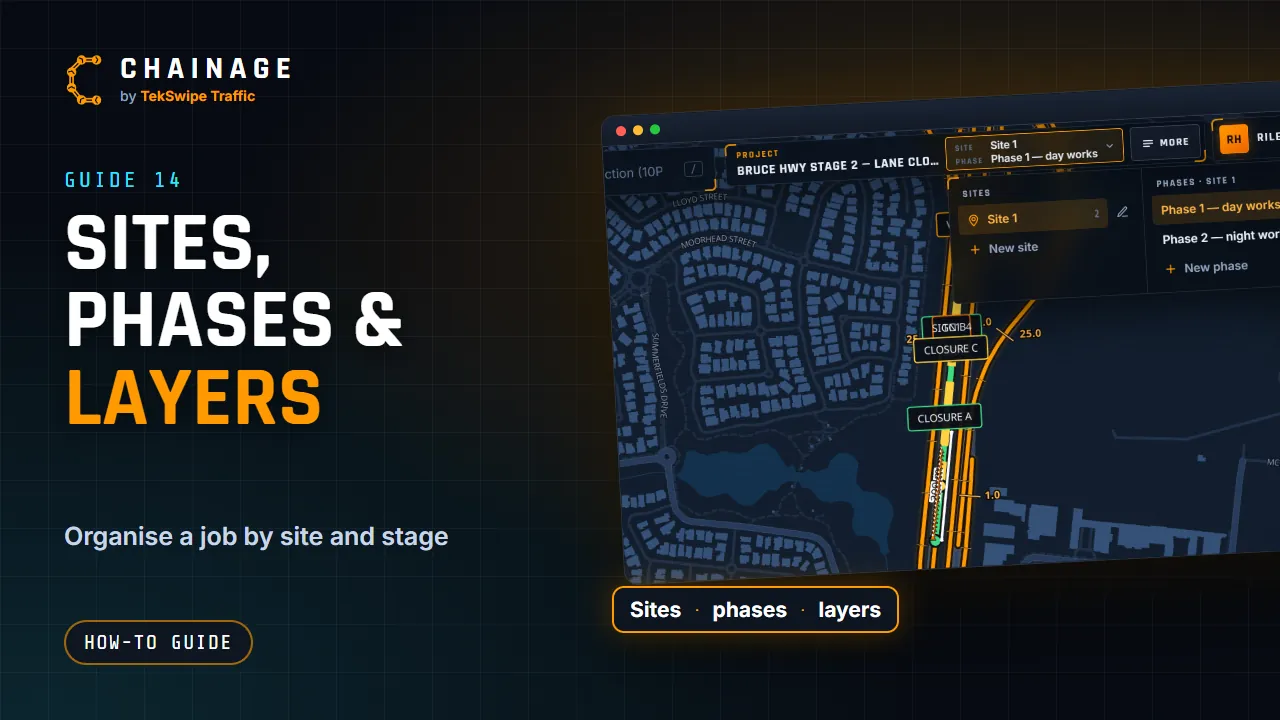
Sites, phases and layers keep a busy job tidy. Sites are the places you work, phases the stages of the work at each site, and layers group the items within them.
How it fits together
- A site is one place the job works at, such as an on-ramp, or an intersection down the road. A project can have several.
- Each site has its own phases: stages of the work, such as Day works and Night works.
- Each phase has its own layers, such as Signs, Closures and Detours.
- Base layers show in every phase, on every site: good for existing conditions, site boundaries or permanent assets.
A new project starts with Site 1, holding Phase 1 with a General layer, plus a Base base layer. A project always keeps at least one site, and a site at least one phase.
The project bar: switch site and phase
With a project open, the bar at the top shows the project's name, the Site and Phase you're in, and More. Tap the site and phase to open the chooser:
- tap a site to see its phases, and a phase to switch to it. Each site remembers the phase you last used there;
- New site adds a site, with its own Phase 1 and General layer; New phase adds a phase to the site you're in;
- the pen beside the site or phase you're in renames it.
To delete a site or phase, use Sites & phases under More, Project. Deleting a site can move its phases to another site, or delete them with everything on them. Deleting a phase can keep its layers (moved to another phase or to base layers) or delete them too.
Layers
Tap More, then Layers. You see the layers in the phase you're in, then the base layers. Add makes a new layer there, and a new layer becomes the current layer.
Each layer row has:
- an eye to show or hide it on the map;
- a colour swatch to change the layer's colour;
- its name: tap it to make it the current layer (marked CURRENT). New items are saved there;
- how many items it has, and for layers with signs, a Sign size slider for every sign on it (see Move, turn and size signs);
- Rename / move (pencil): change the name and which phase it belongs to (or make it a base layer), or Copy into a phase;
- Delete (bin): move its items to another layer, or delete them too.
Find items
More, Items lists what's On the map: how many are showing out of the total, sorted by section and chainage. Type in Filter… to search titles, map labels, roads, notes and chainages, and tap an item to open its card. The Manifest button is here too (see Print a manifest).
How many sites and phases
On the free Starter plan, a project can have 2 sites with 3 phases each. Professional allows 10 sites with 5 phases each, and company projects on the Business plan have no limit. See Plans.
What's remembered, and who can change it
Your site and phase, current layer and hidden layers are remembered for each project on this device. In company projects, adding, renaming and deleting sites, phases and layers needs that permission in your role (see Roles and permissions). People viewing a shared project can switch site and phase and hide layers, but can't change anything. To learn how projects fit together, see How projects work.