
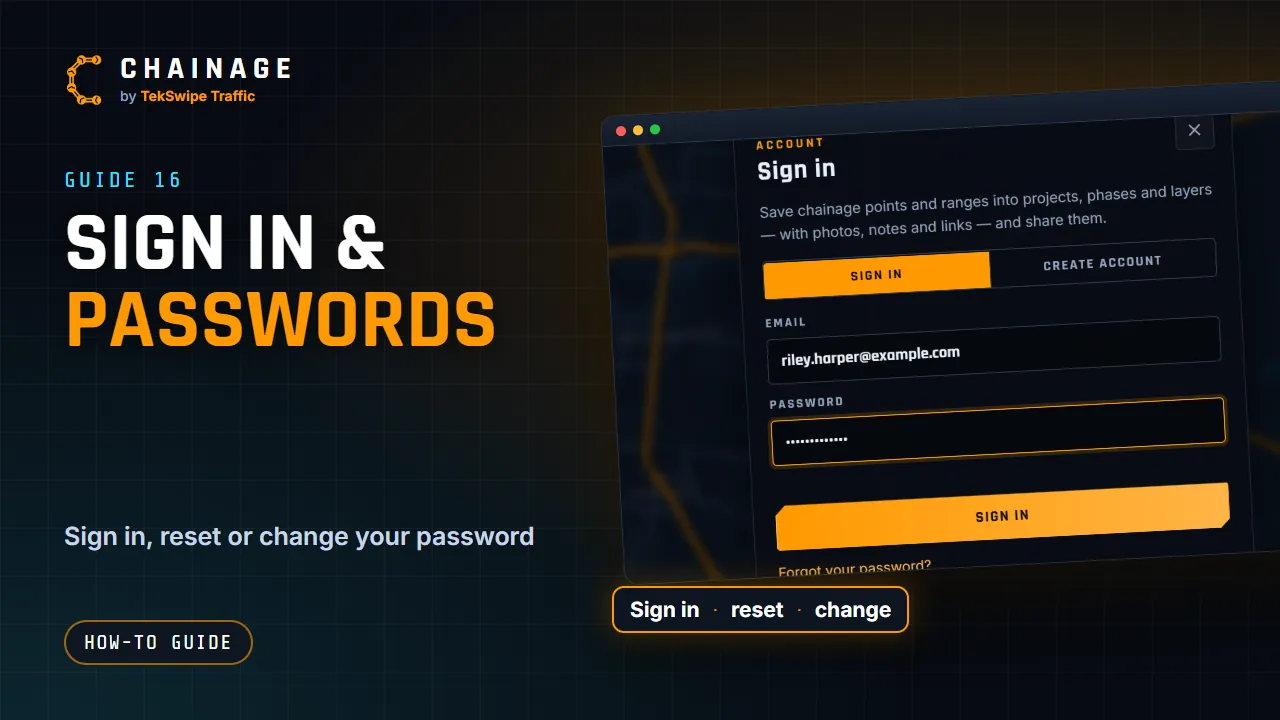
This article covers signing in, what to do when you forget your password, and how the account lockout works.
Sign in
- Tap Sign in at the top right (on a phone it's the person icon).
- Enter your Email and Password, then tap Sign in.
- If you've turned on two-factor sign-in, enter your code. See Turn on two-factor sign-in.
A sign-in lasts 30 days without use, and renews while you keep using Chainage. To sign out, open the account menu and choose Sign out. To sign out other devices, see Signed-in devices.
Forgot your password
- In the sign-in dialog, tap Forgot your password?
- Enter your account email and tap Send reset link.
- Open the email. The link works for one hour.
- In Choose a new password, enter at least 10 characters and tap Set password.
- Sign in with your new password.
Change your password
- Open the account menu and choose Change password (it's also in Sign-in & security).
- Enter your Current password and a New password of at least 10 characters.
- Tap Update password.
Changing your password signs out every other device. This one stays signed in.
If your account gets locked
- After 5 wrong passwords in a row, you have to wait before trying again (30 seconds, then 1, 2, 5 and 10 minutes), and we email you a warning.
- After 10, the account locks and we email you an unlock link. It works for 24 hours. Opening it shows Account unlocked and you can sign in again.
Resetting your password also unlocks the account. If the wrong passwords weren't you, change your password once you're in and turn on two-factor sign-in.
If your account is managed by your company, an admin there can unlock it for you. See If your account is managed by a company.