
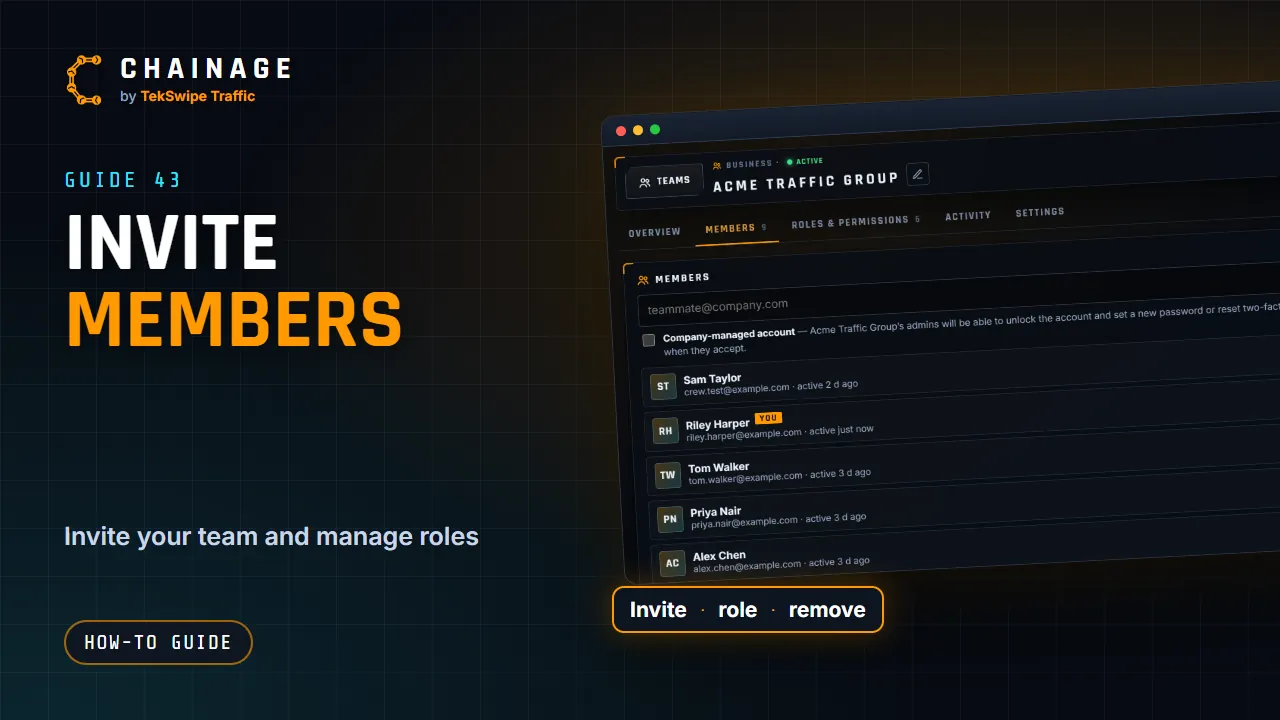
The Members tab is where you bring people into your company and look after them.
Invite someone
- Open the account menu, choose Teams & companies, then your company.
- Choose the Members tab. The top shows how many seats are used, with Add seats.
- Enter their email address and choose a role. Editor is picked to start with. See Roles and permissions.
- If you want your admins to be able to unlock their account or reset their password or two-factor, tick Company-managed account (shown when your role can manage accounts). They'll be asked to agree (see If your account is managed by a company).
- Tap Invite.
We email the invitation. The link works for 30 days, and a pending invitation uses a seat.
When every seat is taken
If you can manage billing, Chainage asks whether to add a seat for the new person and shows what it costs. Tap Add seat and invite. Otherwise you'll see that all seats are in use: ask the owner or your accounts team to add one. See Change your company's seats or storage.
Accepting an invitation
The person opens the link in their email and taps Accept invitation. If they're not signed in, they sign in or create a free account first, using the email address that was invited. They can also accept from Invitations in the account menu, or Teams & companies, with Accept or Decline. If the company requires two-factor sign-in, they're asked to set it up.
Manage members
Each row shows the person, YOU for yourself, when they were invited or last active, and badges: 2FA or No 2FA, Managed (or Managed invite) and Locked.
- Change a role with the dropdown. You can't change your own role or the owner's.
- Resend an invitation with the envelope button.
- Account manages a company-managed account: unlock it, set a new password, reset two-factor or stop managing it.
- Remove someone, or cancel an invitation, with the bin. Their company projects stay with the company. If you manage billing, Chainage then asks Remove the spare seat too? The seat stays until your billing period ends, and you pay for one fewer from the renewal.
Leave a company
To leave, use the leave button on your own row, or the button under Leave company on the company's Settings tab. You lose access to its projects. The owner can't leave: transfer ownership first (see Company settings and security rules).