
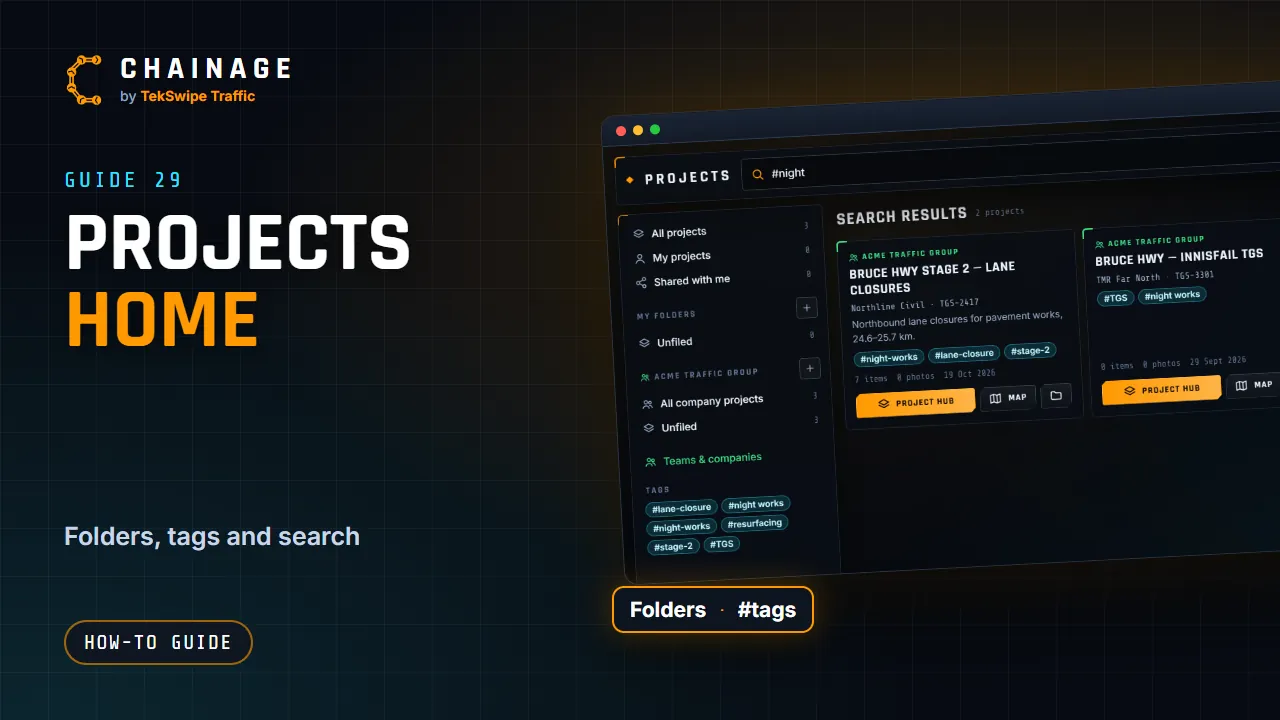
Projects home lists every project you can open: your own, your companies' and those shared with you.
Open Projects home
Open the account menu and choose Projects home. When no project is open, the Projects button at the top right offers Project hub, which opens it too. With a project open, it's All projects under More, Project. At the top are the search box, New folder and New project (icons only on a phone).
Folders and tags
Make folders any way you like, for example Traffic Guidance Schemes › Client › Project. Use New folder, or the + next to My folders or a company's name. Open a folder for Sub-folder, Rename / move and Delete folder. Deleting a folder moves what's inside up a level: nothing inside is deleted.
To file a project, tap the folder icon on its card (or Change folder & tags in the project's Settings). In Folder & tags you can pick a folder, make a new one inside it, and add tags separated by commas.
- Company folders and tags are shared with everyone in the company. Organising them needs that permission in your role.
- How you file projects shared with you is private to you.
Project cards and search
Each card shows whose it is (Personal, ● Open now, the company's name, Shared by or Link from someone), its status, client and reference, description, tags, how many items, photos and files it has, when it was last updated and its folder. Buttons:
- Project hub: opens the project hub.
- Map: opens the project on the map.
- The folder icon: Folder & tags.
- For a saved share link: Open, and the bin to remove it from your hub (the project stays with its owner).
The search box (“Search projects, clients, #tags, folders…”) matches names, descriptions, clients, references, owners and folders. Type #tag to find projects with tags starting with that word.