
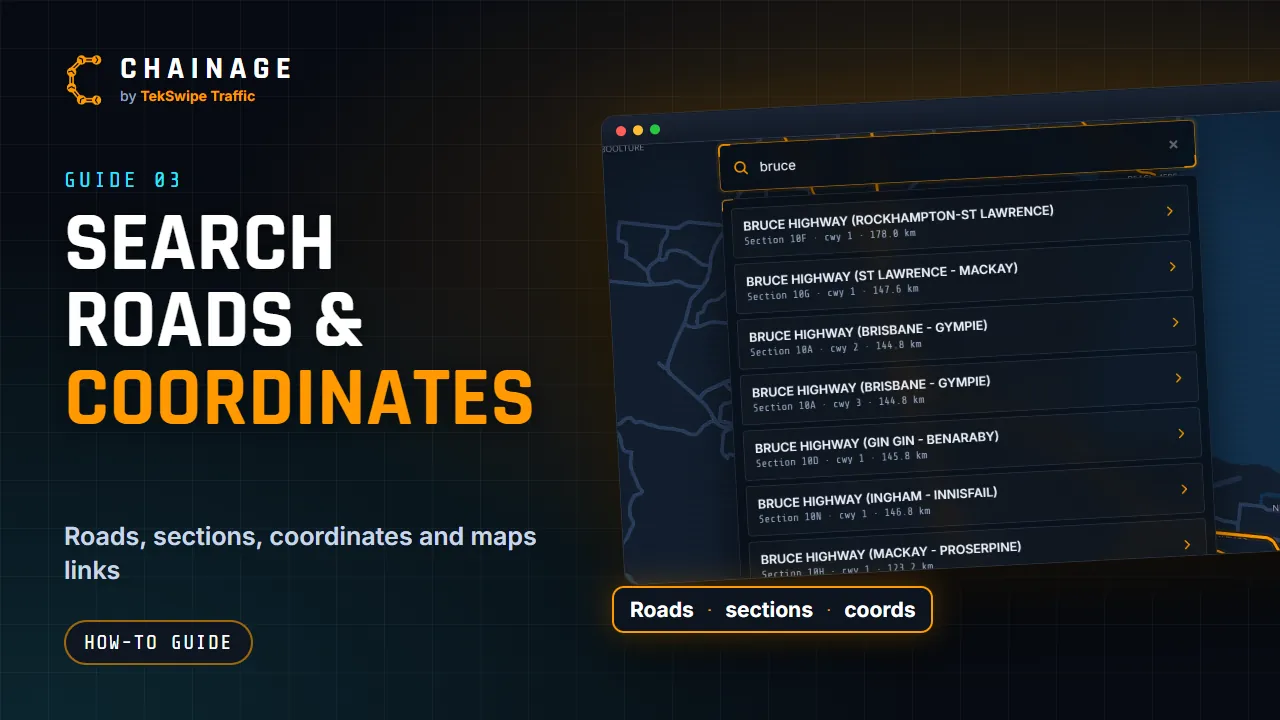
The search bar finds roads by name or section number, and jumps straight to coordinates or a Google Maps link.
Open search
- On a computer, the search bar is always at the top. Press / to jump to it.
- On a phone, tap the magnifying glass at the top right. Search opens full screen.
The box says “Search road, section (10P), coords or maps link”. Press Esc to close it. On a computer, clicking anywhere outside it also folds the results away.
Road names and section numbers
Type at least 2 characters of a road name (for example Bruce Highway or Gympie Road) or a road section number (for example 10A or U14). Exact section matches come first, and you'll see up to 25 results.
Each result shows the road name and a line like Section 10A · cwy 1 · 12.3 km: the section, the carriageway and its length. Council roads show the council's name and road ID instead. Press Enter to pick the first result.
Picking a road lets you type the chainage you want. See Go to a chainage on a road.
Coordinates and Google Maps links
- Decimal coordinates, latitude first, for example -27.4705, 153.0260. A comma, semicolon or space between them all work. Queensland latitudes are negative.
- Degrees, minutes and seconds, for example 27°28'13.8"S 153°01'33.6"E.
- Google Maps links, including the short maps.app.goo.gl links you get from the share button in Google Maps on a phone. You'll see “Reading the location from that link…” while Chainage works it out.
Paste coordinates or a link and the map jumps straight there. If you type coordinates instead, tap the Go to map point result.
Recent searches and pin drops
When the search box is empty, you'll see Recent searches (roads you picked) and Recent pin drops (places you tapped or opened), up to 8 of each. Tap one to go back there. Each list has a Clear button.
This history is kept on this device only, and your live GPS position is never added to it.
Street addresses and place names
Chainage can't search for street addresses, place names or suburbs. To find a place by address, look it up in Google Maps, copy its share link, and paste the link into Chainage's search bar. Or tap the map once you've zoomed to the area.