
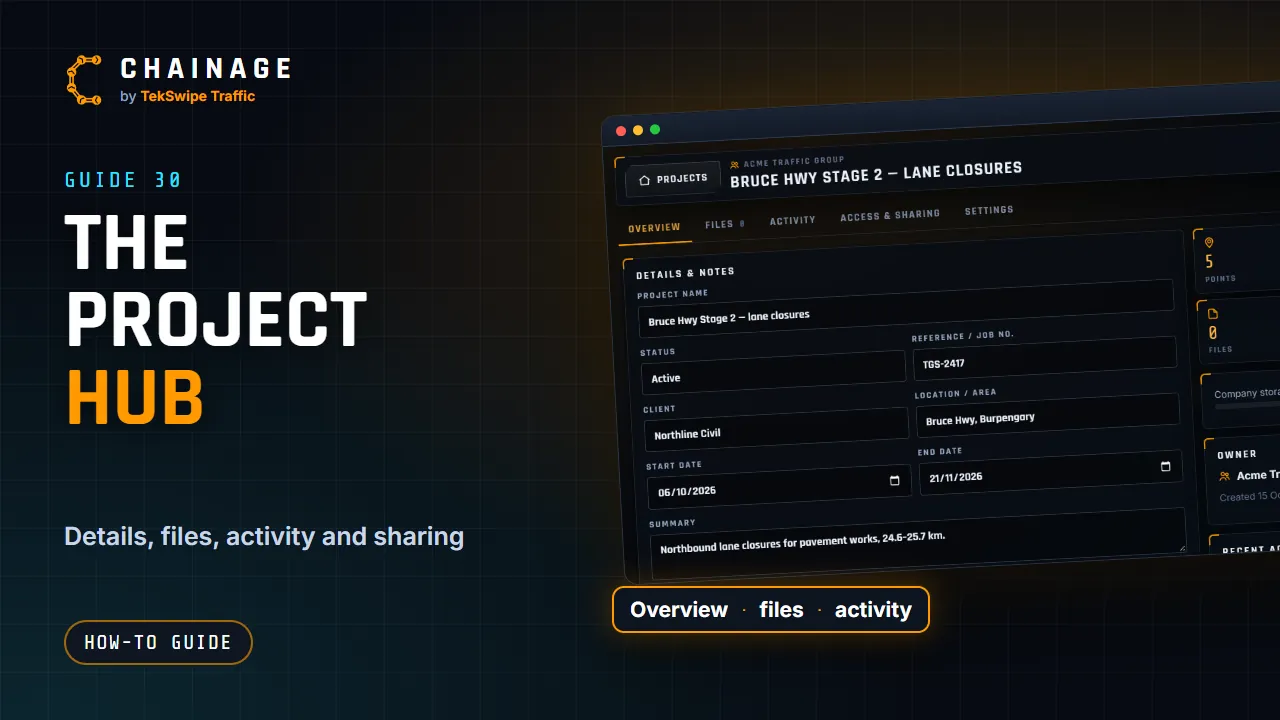
Each project has a hub: a full-screen page with its details, files, activity, sharing and settings. It's covered in the Company admin tutorial video, in the chapter “The project hub”.
Open the project hub
- Tap the project's name in the project bar on the map.
- Tap Project hub under More, Project, or on a project's card in Projects home.
- Choose This project’s hub in the account menu.
The header has Projects (back to Projects home), the project's status and name, Open map and ✕. The tabs are Overview, Files, Activity, Set-ups & pack-ups, Access & sharing and Settings. Tabs your role doesn't allow are hidden.
Overview
Keep the job's details here: Project name, Status, Reference / job no., Client, Location / area, Start date, End date, Summary, Tags and Project notes (up to 20,000 characters, for site contacts, permits, access arrangements and lessons learned). Tap Save details.
Status can be Planning, Active, On hold, Complete or Archived. People who can't edit the project see the details read-only.
Alongside are counts of points, ranges, photos, files, phases and layers; a storage bar (with Get more storage when it's 90% full); the owner; and Recent activity with View all.
Activity
The Activity tab is a record of who did what and when, for example Sam added point “Sign A1” to Signs. Filter it by All, Points, Ranges, Photos, Files, Layers, Phases, Share links, Access or Project. Load older activity shows more. In company projects, seeing it needs that permission in your role. See The company activity log.
Files, set-ups, sharing and settings
- Files: plans, drawings and documents. See Keep files with the job.
- Set-ups & pack-ups: each time the site was set up or packed up, by whom, when, and how many signs. See Set up and pack up a site.
- Access & sharing: the people who can open the project and its share links. See Share a project with people and Share a project with a link.
- Settings: export to GeoJSON or CSV, change the folder and tags, move a personal project into a company, leave a project shared with you, or delete it. See Export a project and Move a project into a company, leave or delete it.