Organise a job with sites, phases and layers
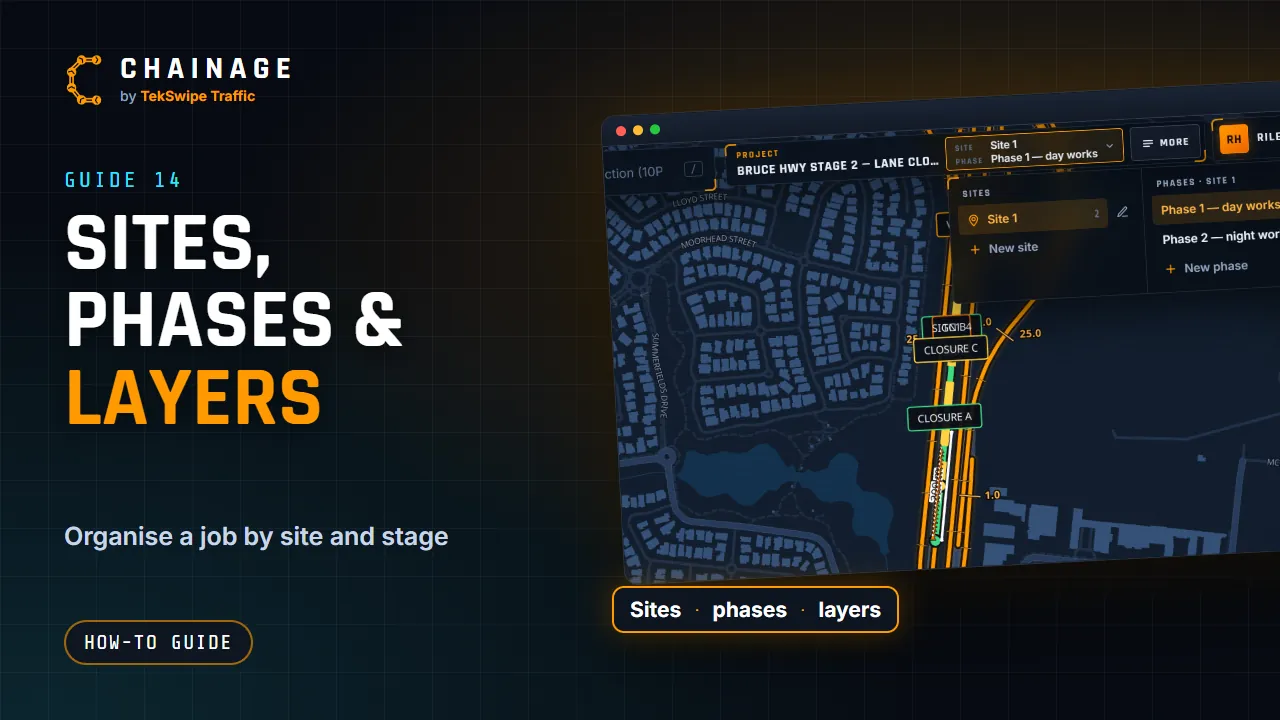
Split a project into sites and phases, add, rename and delete them, choose the current layer, hide layers, size a layer's signs and find items.
Transcript
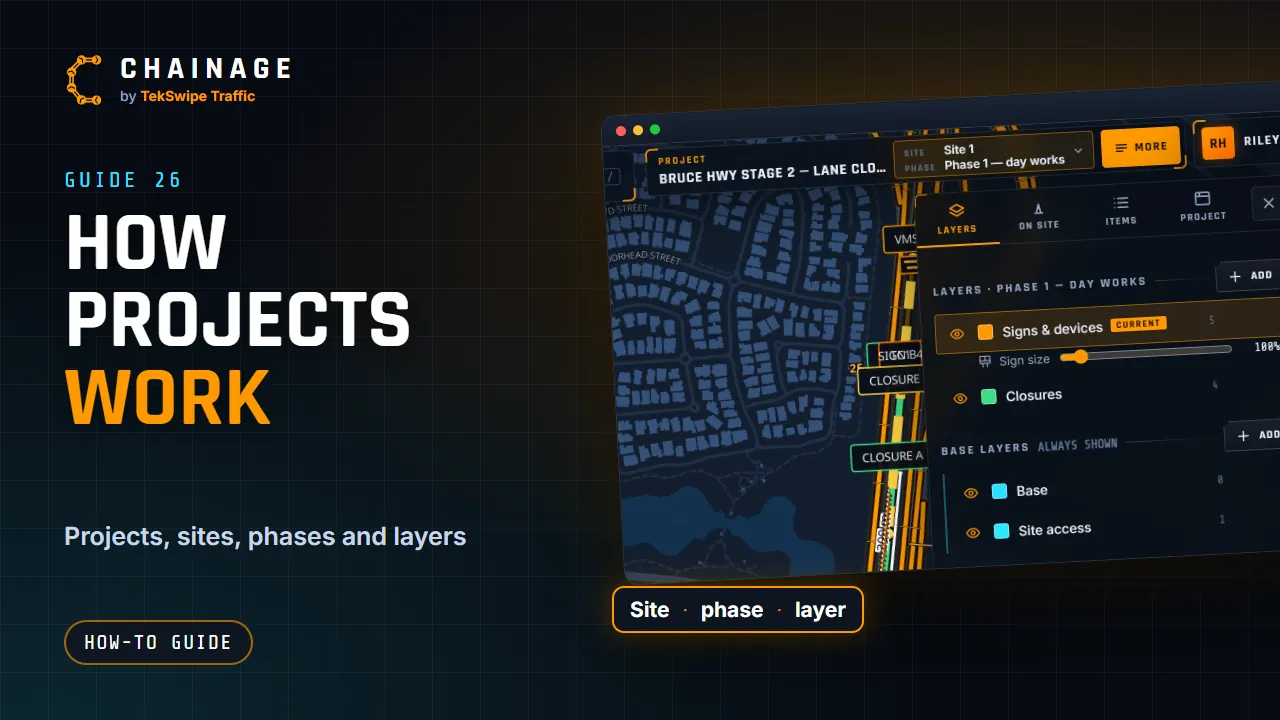
Sites, phases and layers keep a job organised. A project can have more than one site, like a ramp and an intersection down the road. Each site has its phases, the stages of the work, like day works and night works. Each phase has its own layers, like signs and closures. Base layers show in every phase, on every site.
The bar at the top shows the site and phase you're in. Tap it to switch, or to add a new site or phase. The pen beside the site or phase you're in renames it. Open More, then Layers. Tap a layer's name to make it the current layer. New items go there. The eye button hides a layer on the map, without deleting anything.
Add makes a new layer, in this phase or in the base layers.
The full guide: Organise a job with sites, phases and layers