Move, turn and size signs
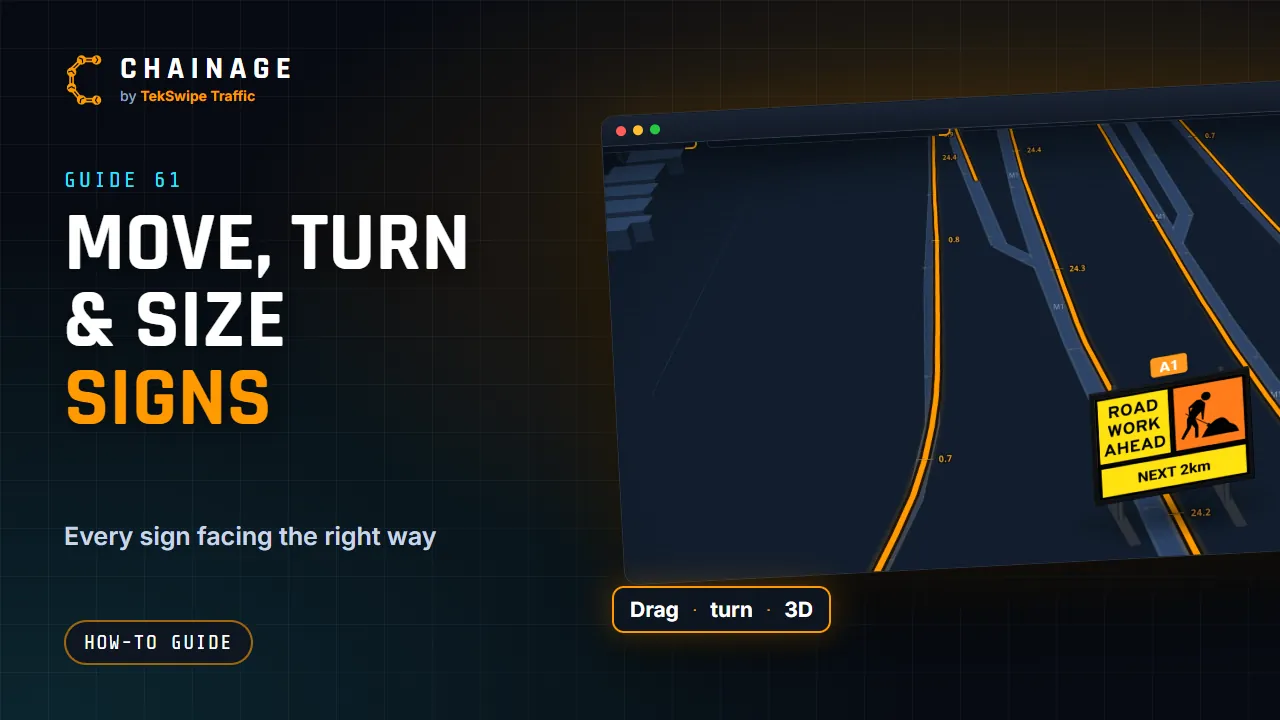
Pick a sign and drag it into place, turn it to face the traffic, choose which side its picture shows, how it's mounted and how big it's drawn, and see it in 3D and Street View.
Transcript
Once a sign is on the map, you can set exactly how it stands. Click a sign to pick it. Then press on it again, and drag it to where it goes. Holding control and dragging turns and tilts the map instead, so you never move a sign by accident. On its card, under On the map, the stand rotation turns it to face the traffic.
Turn one-eighty flips it round. The arrows choose which side of the stand the picture sits, so it stays clear of the road. And Mounted on is a stand, or posts at one and a half or two point two metres. Size of this sign changes just this one. To size every sign on a layer, use its sign size slider, under More, then Layers.
Tap 3D and tilt the map, and your signs stand up, just as they will on the road.
The full guide: Move, turn and size signs