Draw measurements, areas, lines and notes
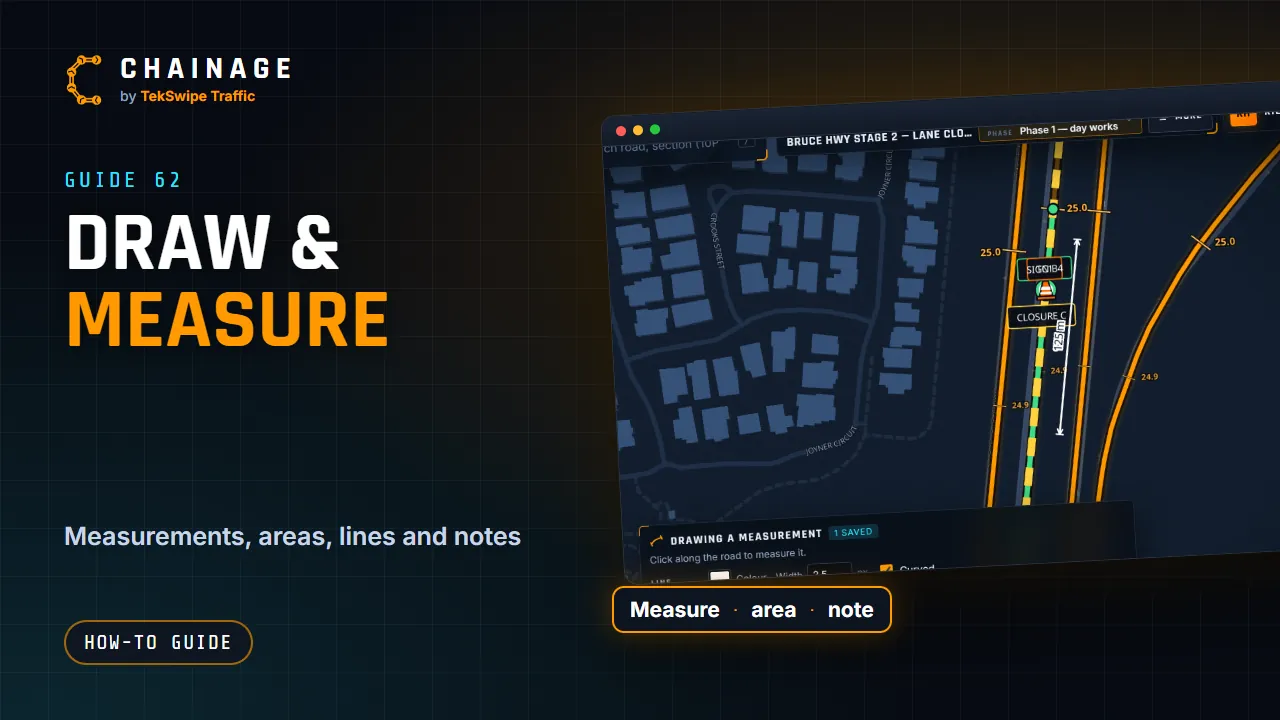
Use the pen to measure along the road, mark out areas, draw lines and pin notes to a project's map, style them, and edit their points.
Transcript
The pen, under the map buttons, draws on the map, and saves each drawing to your project. Pick what to draw: a measurement, an area, a line, or a note. Click along the road to measure it. Each click adds a point, and the length shows as you go. Right-click to save it and start the next one. Double-click, or tap Finish, when you're done.
The panel sets its look: the line's colour and width, the arrows' style, size and ends, the text, and a border. Tap Set as default, and every new measurement starts in that style. An area shows its size in square metres, and a note pins a comment to the map. To change a drawing later, double-click it. Drag its points, or hold control and click to add a point or take one away.
The full guide: Draw measurements, areas, lines and notes