Add a sign
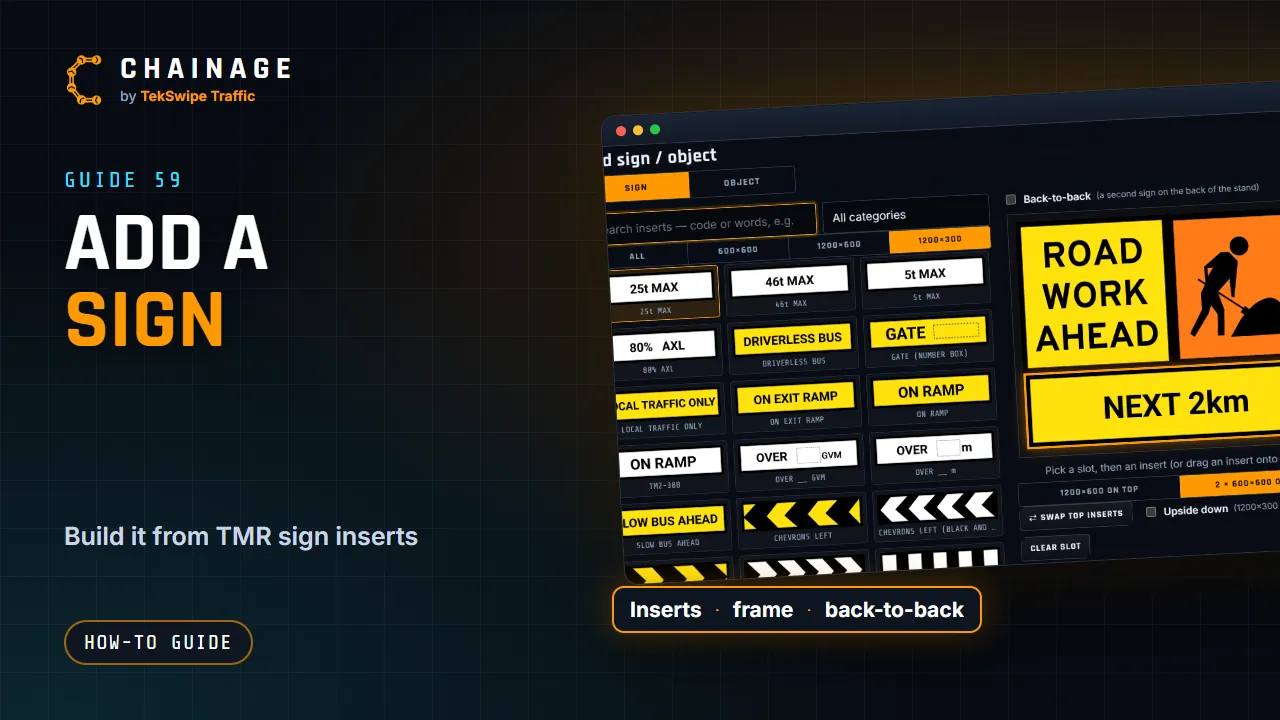
Put a real sign on the map: build it from the TMR sign inserts in the designer, make it back-to-back, and save it to a project.
Transcript
Chainage can put real signs on the map, built from the inserts in the TMR sign library. Click the road where the sign goes, then tap Add sign or object on the card. The designer opens. Choose the top of the frame: one twelve hundred by six hundred insert, or two six hundred by six hundreds. Search the library by code or by words, like road work, and tap an insert to put it in the selected slot.
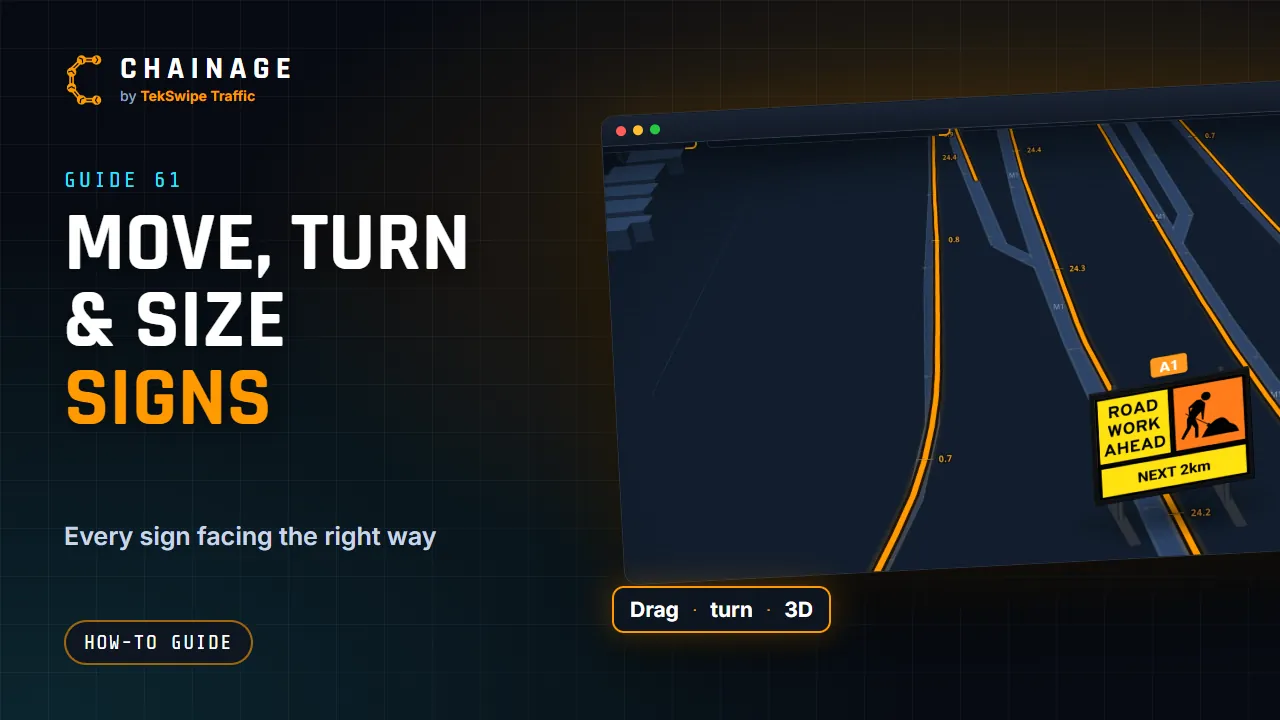
Add a strip underneath, like next two kilometres. The list under the sign spells out each insert. Tick Back-to-back for a second sign on the back of the stand, for traffic coming the other way. Tap Next, then choose the project and layer, and give it a map label, like A3. Save it, and the sign stands on the map, right where you clicked.
The full guide: Add a sign