Edit, move and add photos to saved items
Open a saved point or range to edit its details, move it, add photos and links, check its road data, or delete it.
Transcript
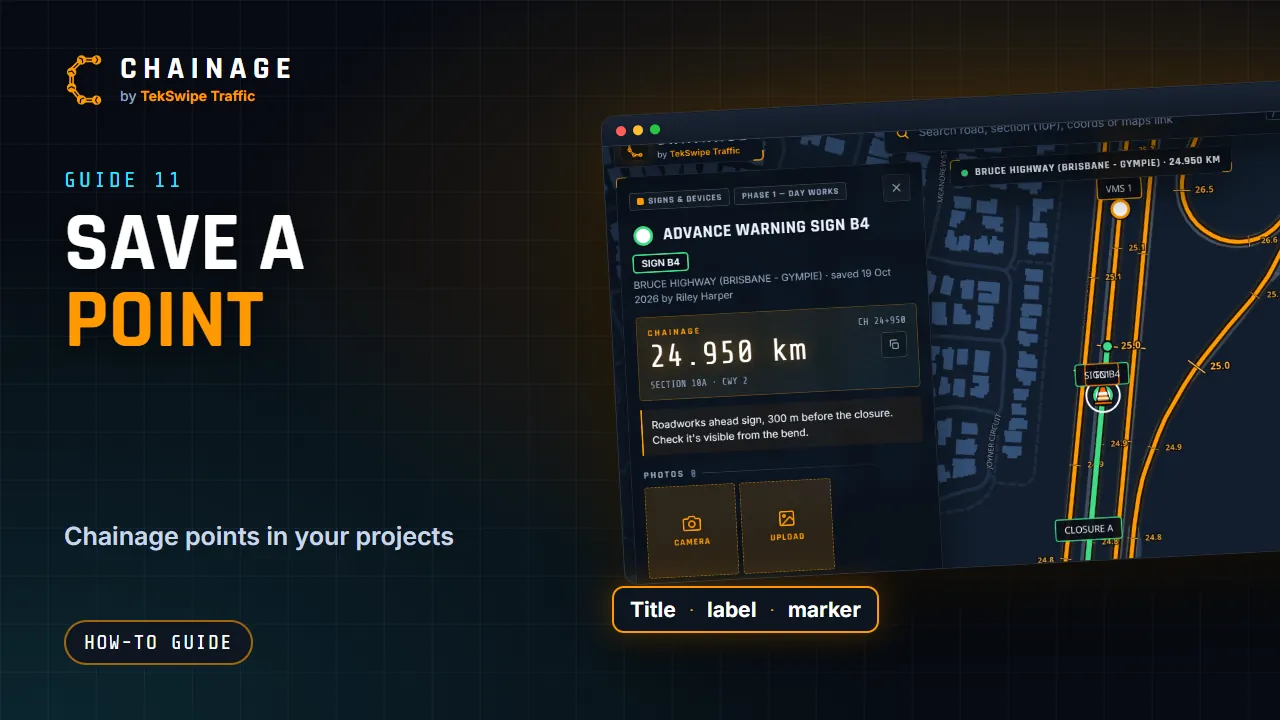
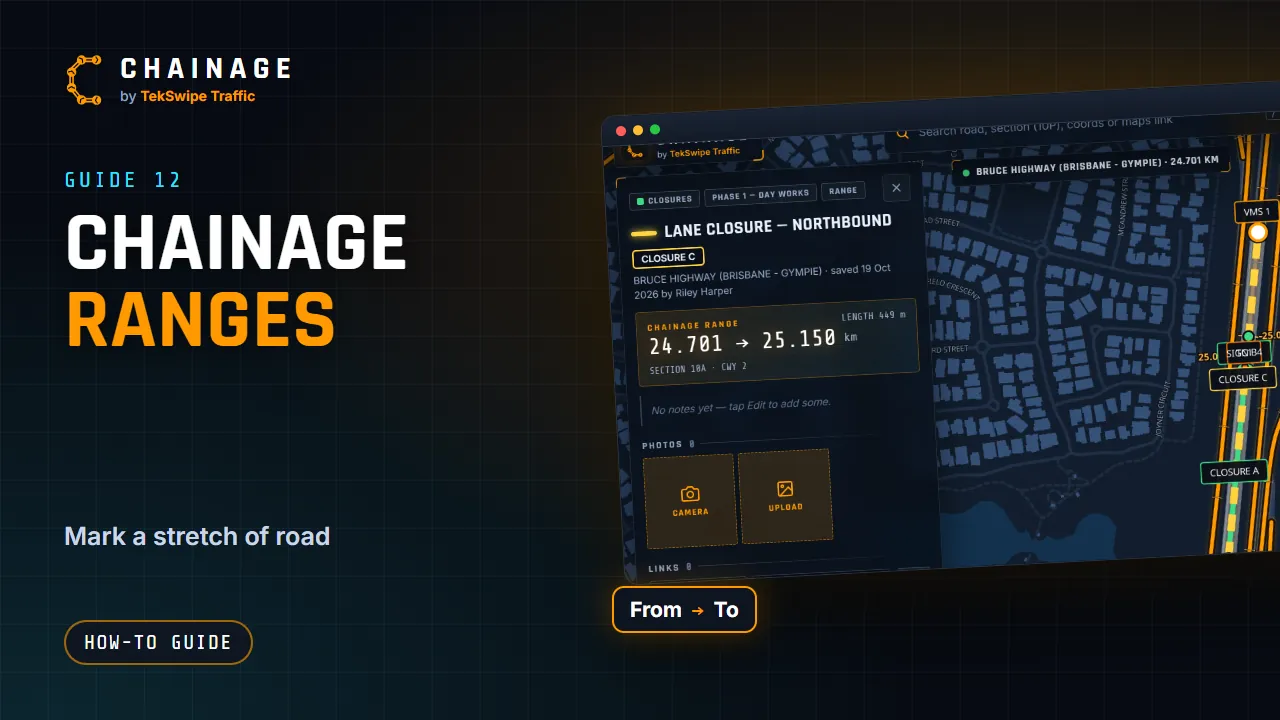
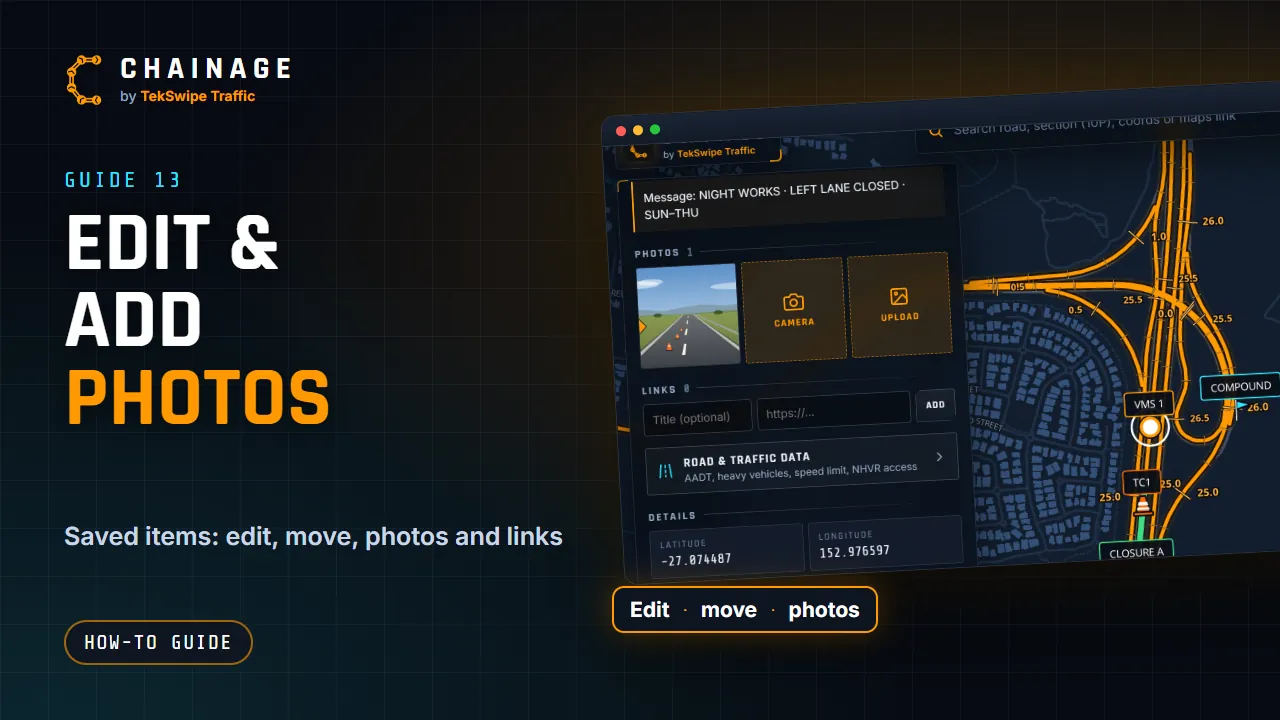
Every saved point and range has its own card. Tap it on the map, or find it under More, then Items. It shows the chainage, notes, photos, links, and the road and traffic data. Tap Edit to change the title, map label, marker, colour or notes, or to move it to another phase or layer. Move lets you pick a new spot on the map, set an exact chainage, or snap it onto the road.
Or, once it's picked, just press on it and drag it to its new spot. Add photos with Camera, which stamps the chainage, or Upload to add photos you already have. Under Links, add a web address, like a permit or a drawing kept somewhere else. Delete removes the item, with its photos and links, for good. So be sure first.
The full guide: Edit, move and add photos to saved items